
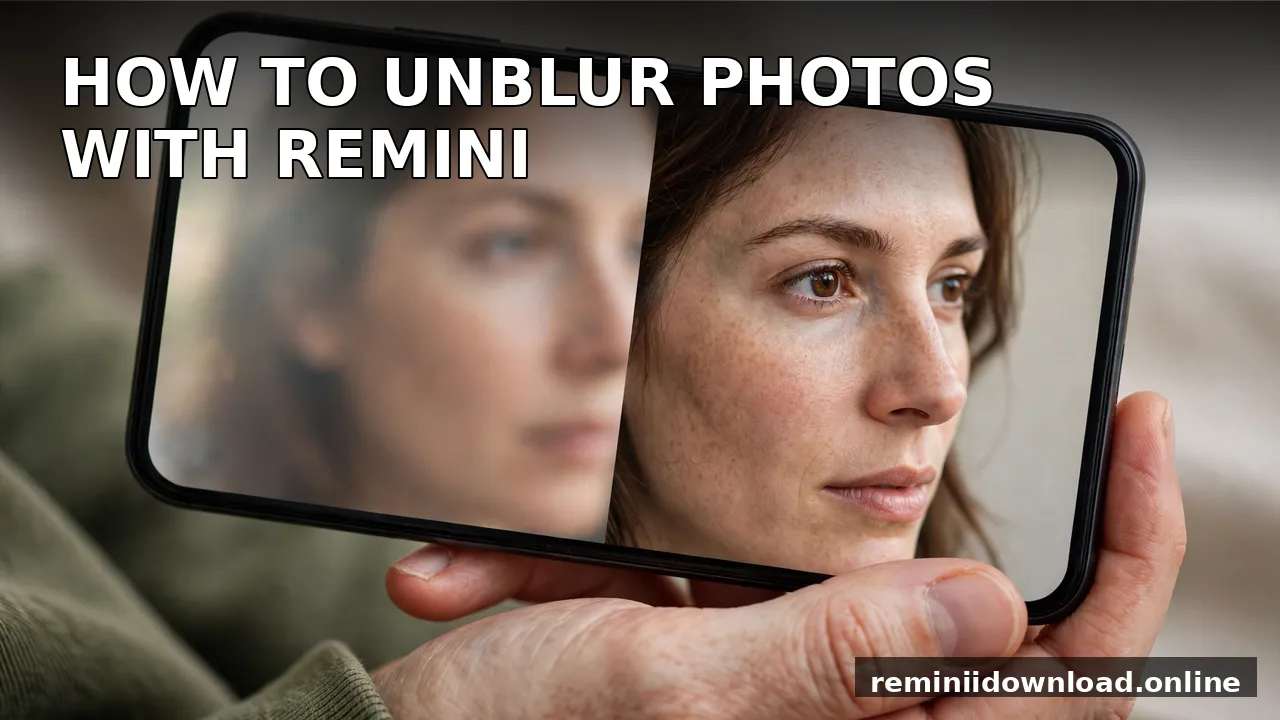
How to Unblur Photos with Remini: Fix Blurry Pictures (2026)

Quick Answer: How to Unblur a Photo with Remini
To unblur a photo with Remini, install the app (or open remini.ai on the web), tap Enhance, select the blurry photo from your gallery, and let the AI process it for a few seconds. Remini’s “Unblur & Sharpener” model reconstructs detail, reduces blur, and sharpens edges automatically. Compare the result with the before/after slider, then save it to your device. The free version includes daily processing limits and ads; premium plans remove both. In short, that is how to unblur photos with Remini in under a minute.
Table of Contents
Why Photos Get Blurry (And What AI Can Actually Fix)
Before unblurring, it helps to know what kind of blur you are dealing with — because no AI tool fixes every type equally well.
- Motion blur: The camera or subject moved during the shot. Light to moderate motion blur responds well to AI deblurring; severe streaking usually does not.
- Out-of-focus blur: The camera focused on the wrong point. Mild focus misses are very fixable; a completely defocused face often is not.
- Low-resolution softness: Old phones, heavy compression, or screenshots enlarge into softness. This is where Remini shines — its models were trained to reconstruct detail in low-resolution portraits.
- Camera shake: A mild hand tremor in low light. Works reasonably well if the shake is small.
The honest limit, stated plainly: AI unblurring does not recover detail that was never captured. It reconstructs plausible detail — on faces the results can look impressively real, but on badly damaged or extremely blurry photos the result can look artificial. Think of an enhanced photo as the AI’s best interpretation of your picture, not a recovered original. (For old, physically damaged photos — scratches, fading, tears — see our dedicated guide to restoring old photos with Remini, which covers a different workflow.)
Remini’s Unblur & Sharpener Tool: What It Does
Remini (by Bending Spoons, with over 500 million downloads on Google Play) offers a dedicated Unblur & Sharpener tool alongside its general Enhance feature. It uses generative AI to:
- Recover lost sharpness from shaky or out-of-focus shots
- Reconstruct facial detail — eyes, skin texture, hair — in blurry portraits
- Reduce noise while preserving edges, so sharpening does not create halos
- Upscale the result to a cleaner, higher-resolution output
Unlike old-school sharpening filters that merely boost edge contrast (which usually makes a blurry photo look noisy rather than clear), Remini’s models were trained on huge image collections to rebuild plausible detail. That is why the difference is most dramatic on portraits and selfies — and more modest on landscapes, where there is no face for the model to latch onto.
How to Unblur Photos with Remini on Android & iPhone (Step by Step)
The mobile app is the most popular way to unblur photos with Remini, and the process takes under a minute.
Step 1: Install and open Remini. Download the app from the Google Play Store or Apple App Store. Open it and sign in, or continue with a guest account — enhancement runs on Remini’s servers, so an account tracks your free daily quota.
Step 2: Tap Enhance and choose your photo. On the home screen, tap Enhance (this is the main AI unblur feature). Your gallery opens — select the blurry photo you want to fix. If you are on the free version, you will see a short ad before processing begins.
Step 3: Let the AI process the image. Tap the confirm/check button and wait a few seconds while Remini analyzes the photograph, applies AI detail reconstruction, and reduces noise. You do not need to adjust anything — the enhancement is fully automatic.
Step 4: Compare with the before/after slider. Remini shows an interactive before-and-after screen. Drag the slider across the image and check the areas that matter most — faces, eyes, and text. If the result looks over-smoothed or plasticky, run it once more; a second pass sometimes produces a more natural result.
Step 5: Save the result. Tap the download icon to export the sharpened image to your device in high resolution. Free-version exports carry a watermark — our guide on how to remove the Remini watermark explains the legitimate ways to deal with it.
Quick tips for the app: use the original, uncropped photo (cropping first throws away pixels the AI could use), avoid photos that have already been through another app’s sharpening filter, and process portraits one face at a time for the cleanest reconstruction. If you are new to the app overall, our complete guide to using the Remini app explains every tool on the home screen.

How to Unblur Photos with Remini on the Web (No App Needed)
Prefer a desktop? Here is how to unblur photos with Remini on the web: the official website offers the same technology without installing anything.
Step 1: Go to remini.ai in your browser.
Step 2: Click Enhance, then choose Unblur & Sharpener.
Step 3: Upload the blurry photo from your computer.
Step 4: Wait a few seconds while the cloud AI generates the clearer version.
Step 5: Compare before and after, then download the result.
The web version is handy for batch work or when you are editing on a larger screen, and it follows the same free-daily-limit model as the app. We cover the browser workflow in more depth in our Remini Web guide.
Unblur & Sharpener vs Standard Enhance: Which Should You Use?
Remini offers more than one enhancement path, and picking the right one matters:
- Use Unblur & Sharpener for blurry, shaky, or out-of-focus photos — it is specifically trained on blur.
- Use standard Enhance for generally low-quality photos — old scans, compressed images, or dull colors where blur is not the main problem.
- Use Face Enhance (inside the results options) when the photo is a portrait and the face still looks soft after the first pass — it applies extra reconstruction to facial features.
In practice, when someone asks how to unblur photos with Remini, most blurry-photo jobs start with Unblur & Sharpener. If the face still looks mushy, run Face Enhance on the result rather than re-running the whole unblur — stacking the same tool repeatedly tends to over-smooth skin.
7 Pro Tips for Better Unblur Results
- Start with the highest-resolution original you have. A blurry 12 MP photo gives the AI far more to work with than a blurry 480p screenshot of it.
- Do not pre-sharpen. Running a photo through another app’s sharpening slider first creates halos and noise that Remini then has to fight.
- Crop faces tight for portraits. The AI reconstructs faces best when the face occupies a good portion of the frame. Our best Remini settings guide explains how framing affects results.
- Fix exposure first, blur second. If a photo is both dark and blurry, brighten it in your phone’s editor first, then unblur.
- One pass is usually enough. Two passes can help; three or more almost always look waxy.
- Save as PNG for archiving. If you plan to print the photo, export the highest-quality format available rather than re-compressing to JPEG.
- Keep the original. AI unblurring is interpretive — always keep the untouched original in case a future, better model comes along.
Is Remini’s Unblur Free? Limits Explained
Yes — learning how to unblur photos with Remini costs nothing to start: the free version lets you unblur photos but caps how many you can process per day and shows ads before processing. Free exports may also carry a watermark.
Paid plans (weekly and annual options on both app stores) remove the daily caps, remove ads, unlock higher-resolution exports, and open heavier tools like video enhancement. If you only need to fix a handful of blurry photos, the free tier is usually enough — spread the work across a couple of days. For the full pricing breakdown, see our Remini subscription plans guide; if you started a trial and want out, here is how to cancel.
Unblurring Text, Screenshots & Documents: Honest Limits
A common question: can Remini unblur text — a blurry receipt, a screenshot, an ID card? The honest answer is sometimes, inconsistently. Remini’s models are portrait-first; they are excellent at faces and decent at general photos, but text deblurring is unreliable because letters have no “plausible reconstruction” the way a human eye does. Lightly soft text can become readable; heavily blurred text usually comes back as confident-looking gibberish — which is worse than useless for documents.
If text readability is the goal, use a tool built for it (your phone’s built-in scanner, or a dedicated document app) rather than a portrait enhancer. And never upload sensitive documents to any cloud enhancer without reading its privacy policy first — see our Remini safety and privacy review for what happens to photos you upload.
When Remini Can’t Fix the Blur
Some photos are beyond AI unblurring: extreme motion streaks, completely defocused shots, or images so small there is nothing to reconstruct. In those cases you have two honest options — accept the photo as-is, or try a different tool. Google Photos’ built-in Unblur (free, on-device) handles slightly soft shots well, and desktop tools like Topaz Photo AI offer manual deblur controls for power users. Our Remini alternatives roundup and the Remini vs Topaz comparison cover both in detail.
If Remini itself misbehaves during processing — crashes, the “oops” error, or enhancement stuck at 0% — those are app problems, not blur problems. See how to fix the Remini oops error and Remini app not working: 12 fixes.
Frequently Asked Questions
How do I unblur a blurry photo for free?
To see how to unblur photos with Remini for free, install the free Remini app, tap Enhance, select the blurry photo, and save the result. The free tier covers a limited number of photos per day with ads. For a completely free, no-install option, try the Unblur tool built into Google Photos on Android and iPhone.
Does Remini really fix blurry photos?
Yes, for mild to moderate blur — especially blurry faces and low-resolution portraits, where Remini is strongest. It reconstructs plausible detail using AI rather than recovering the original pixels, so severely blurred or tiny images may still look artificial.
What’s the difference between Unblur & Sharpener and Enhance in Remini?
Unblur & Sharpener is trained specifically on blur (motion blur, camera shake, out-of-focus shots). Standard Enhance targets general low quality — noise, dull colors, and low resolution. Use Unblur & Sharpener when blur is the main problem.
Can Remini unblur a photo on iPhone?
Yes — here is how to unblur photos with Remini on iPhone: download Remini from the App Store, tap Enhance, choose the blurry photo from your gallery, wait a few seconds, compare with the before/after slider, and save. The steps are identical on Android.
Can I unblur photos with Remini without the app?
Yes — here is how to unblur photos with Remini without the app: use the official website. Go to remini.ai, click Enhance > Unblur & Sharpener, upload your photo, and download the result. No installation required.
Why does my unblurred photo look fake or plasticky?
Over-processing. Running the same photo through the tool multiple times over-smooths skin and invents detail. Re-run once at most, and start from the original rather than the already-processed copy.
Is there a limit to how many photos I can unblur for free?
Yes. The free version caps daily processing and shows ads. Paid plans remove the caps and ads and unlock higher-resolution exports. Check our subscription plans guide for current pricing.
Can Remini unblur text in screenshots?
Inconsistently. Remini is optimized for faces and photos, not text — lightly soft text may become readable, but heavily blurred text often comes back as plausible-looking gibberish. Use a dedicated document scanner for text.
Conclusion
Unblurring photos with Remini comes down to one button and a little judgment: pick the right tool (Unblur & Sharpener for blur), start from the best original you have, and accept the AI’s honest limits — it interprets, it does not recover. For everyday blurry selfies and portraits, the free tier fixes in seconds what used to take a desktop editor. For old, physically damaged photos, switch to the restoration workflow instead.
By Rahul Sharma — Rahul Sharma is a tech writer covering AI photo tools and mobile apps. He tests every workflow in this guide on both Android and iOS before publishing.
