

Remini Web: How to Use Remini Online Without the App (2026 Guide)

Remini Web is Remini’s AI photo enhancer in your browser at app.remini.ai: sign in, upload a photo from your computer, and download a sharper, restored version — no install needed. It uses the same cloud AI as the mobile app, but suits desktop files and big screens better.
Everything else in this guide is about doing that workflow well: deciding when the browser beats the app, uploading in the right order for a batch of scans, checking results at full size before you spend a credit, and knowing the limits — shared credits, upload quirks and browser traps — before they waste your time.
Last updated: October 29, 2026
Table of Contents
Start With the Decision: Web or App?
Most comparisons list features. This one starts with the only question that matters: where are your photos, and where will you judge the result? If the files already live on a computer and you care about fine detail, the browser wins before any feature is counted. If the photo was taken ten minutes ago and will be posted from the same phone, the app wins just as quickly.
| Situation | Remini Web | Mobile App | Better Pick |
|---|---|---|---|
| Scanned family photos on a PC | Drag-and-drop uploads, big preview | Files must move to the phone first | Web |
| A blurry selfie taken today | Works, but uploading feels slow | Already on the device, one tap | App |
| Phone storage is full | Uses no device storage | Needs install space and updates | Web |
| School or work computer | Runs in the browser, nothing installed | Usually cannot be installed | Web |
| AI avatars and newest creative tools | Often arrive later or not at all | Full, earliest feature set | App |
| Judging fine detail before printing | Full-size monitor check | Small screen hides artifacts | Web |
| Enhancing on the move | Needs a browser and a connection | Built for exactly this | App |
The pattern: the web version wins on files, screens and devices; the app wins on immediacy and features. Neither wins on enhancement quality — both send your photo to the same cloud AI, so a result that looks waxy in one will look the same in the other.
The Real Browser Workflow, Step by Step
Open a photo you actually care about and follow along. This workflow is written for a whole folder of images, not just a single test, and each step includes the small detail that saves a wasted credit.
Step 1: Open the Official Web App
Go to app.remini.ai — that address, and only that address, is the official web app; the main Remini site links to it as well. Lookalike domains copy the branding to sell subscriptions Remini never sees, so type the address or use a bookmark rather than clicking the first ad on a results page. The workspace loads with the uploader front and centre.
Step 2: Sign In With the Right Account
Sign in before you upload anything, and use the same account as your mobile app if you have one — Google, Apple, Facebook or email. This matters more on the web than anywhere else: credits, trials and subscriptions are tied to the account, not the device, so a second account started with a different login quietly splits your balance across two wallets. New accounts typically receive a small number of free enhancements — enough to test the workflow on your worst photo.
Step 3: Upload From the Computer, Not a Copy of a Copy
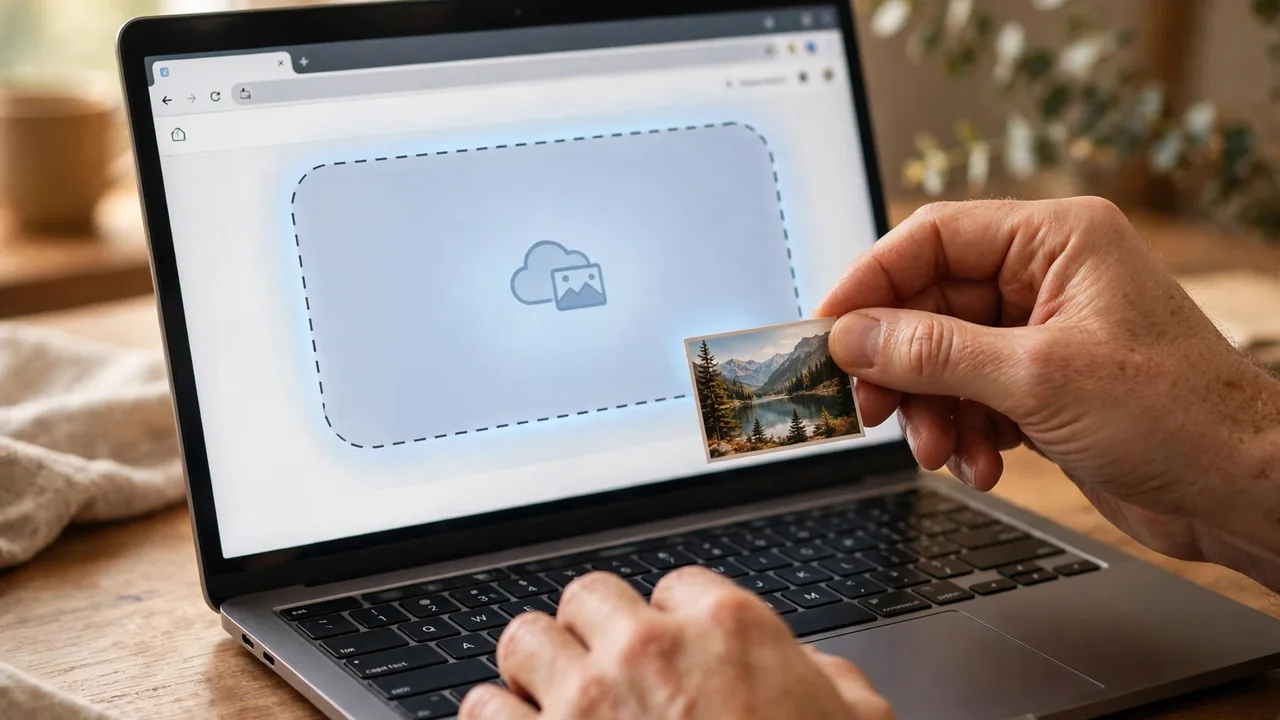
Drag the file into the upload area or click to browse. Work from the original — the camera file or the full-resolution scan — never a WhatsApp-forwarded or screenshot version, because the AI rebuilds detail from what survives in the file and a compressed copy gives it almost nothing. JPG and PNG are the safe choices. For a batch, finish each photo fully before starting the next.
Step 4: Match the Enhancement to the Photo
Choose the mode that fits the image in front of you: the general enhancer for ordinary blurry shots, face-focused enhancement for portraits, and the restoration-style option for scanned prints. Picking the wrong mode is the most common cause of the plasticky result people blame on the AI itself. Our full guide to using the Remini app explains what each tool does, and the same logic applies in the browser.
Step 5: Compare at Full Size Before You Download
Processing usually takes under a minute. When the result appears, drag the comparison slider slowly across faces, then zoom to 100% and check eyes, teeth, hairlines and any text in the frame — the places reconstruction most often invents. This is the step the big screen exists for. If skin looks over-smoothed, re-run once with a different mode instead of enhancing the enhanced version, which compounds the artificial look. Our unblur guide shows what a clean result looks like at this zoom.


Step 6: Download, Rename and Keep the Original
Download the finished image straight into the project folder it belongs to, and rename it immediately — “restored” in the filename stops tomorrow’s confusion about which copy is which. Never overwrite the original scan or camera file. The AI reconstructs rather than recovers, so the untouched original is your only way back if a face comes back subtly wrong.
Where the Web Version Genuinely Wins
Bulk Old-Photo Scanning Projects
The strongest case for the browser is a project, not a photo: a shoebox of family prints, a scanner, and an afternoon. Scans land in a computer folder, and from there the web workflow is scan, upload, enhance, download, rename — repeated fifty times without a single file touching a phone. Working on copies and keeping originals untouched matters even more at this scale; our guide to restoring old photos with Remini covers scan settings and restoration order in depth.

Big Screens and Honest Judgement
Enhancement is a judgement call, and phone screens flatter bad results. On a monitor you can see whether sharpening rescued a portrait or pushed it into waxy, invented detail — before the photo is printed, framed or sent to family. Anyone preparing images for print, a family book or a large frame should make the final call on the biggest screen available.
No Phone Storage, No Install, No Permission
The web version uses no storage on your device, needs no updates, and asks no one’s permission. That makes it the only realistic option on school and work computers where installs are blocked, on many Chromebooks, on Linux machines the app never supported, and on a borrowed laptop you would rather leave exactly as you found it.

Honest Limits Before You Rely on It
- Credits are account-based, and that cuts both ways. Signing in with the same account typically means the same balance and plan in the browser and the app — but a plan bought through an app store may not always show up instantly on the web, and signing in with a different method can land you in an empty second account.
- Very large files can struggle. Most everyday photos upload fine, but extremely large scans may be slow or rejected; if a huge file fails repeatedly, enhance a high-quality copy at a slightly reduced size rather than a heavily compressed one.
- Browsers have quirks. Aggressive ad-blockers, VPNs and private-browsing modes can break the uploader or the download. The web app is happiest in a current version of Chrome or Edge.
- Fewer creative tools. AI avatars and many newer portrait features launch on mobile first, and some never reach the browser. The web version is an enhancer first, not the full Remini playground.
- No connection, no enhancement. Everything is processed in the cloud, so there is no offline mode at all — a weak connection turns a one-minute job into a stalled upload.
Credits, Pricing and the Free Tier — Honestly
Remini Web follows the same freemium shape as the app. A free account typically includes a small number of complimentary enhancements, and free downloads may carry a watermark or a resolution limit. Paid plans typically remove those limits and are offered on weekly, monthly and longer terms, with the longer terms usually working out cheaper per week. Prices and trial terms change often enough that any exact figure printed here could mislead you within a month — check the price inside your own signed-in account before committing, and read our Remini subscription plans breakdown for how the tiers compare. One practical tip: because the account is shared, test the web workflow on free credits first, and only pay when a real project is ready to run.
Troubleshooting: When the Browser Workflow Breaks
- Upload stalls or fails: check the connection first, then disable your ad-blocker or VPN for app.remini.ai and reload. If one very large file keeps failing, try a slightly smaller copy of the same image.
- Sign-in loops back to the start: clear cookies for the site, or open the web app in a private window. If Google sign-in keeps looping, switch to email sign-in for that session.
- The download looks softer than the preview: download the file itself rather than saving or screenshotting the preview image, and make sure you are viewing the downloaded file at full size — previews are compressed.
- Nothing loads properly: update the browser. The workspace relies on modern browser features, and out-of-date versions are a common cause of blank upload areas and dead buttons.
- Enhancement hangs for several minutes: peak traffic and very large photos slow processing down. Give it a couple of minutes; if the progress never moves, refresh and re-upload the same file.
Who Should Just Use the Phone App Instead
Be honest about your actual habit. If your photos are taken, enhanced and posted from the same phone within the hour, the browser adds an upload step and nothing else — the app is the right tool. The same goes if you mainly want AI avatars, headshots or the newest creative filters, which live on mobile first, or if you enhance while travelling on patchy connections. The web version earns its place when files, screens or device restrictions enter the picture. And if you enhance on a desktop every day and want a heavier setup than a browser tab, compare the options in our Remini for PC guide before settling.
Frequently Asked Questions
Is Remini Web free to use?
Partly. A free account typically includes a small number of complimentary enhancements, enough to test the quality on your own photos. After that you will need a subscription or credits, and free downloads may carry a watermark.
Does Remini Web share my account and subscription with the mobile app?
Typically yes, as long as you sign in with the same account and login method. Credits and plans are tied to the account, though a plan bought through an app store can occasionally take time to appear on the web.
Is the enhancement quality the same as the app?
Yes, in practice. Both versions send your photo to the same cloud AI, so the same file in produces the same result out. What changes is the experience around it — screen size, file access and available tools.
Can Remini Web enhance videos?
Video enhancement on the web is typically more limited than in the app and best suited to short clips. For long or high-resolution footage, the mobile app usually handles the job more smoothly.
Do I need to install anything to use Remini Web?
No. It runs entirely in a modern browser on Windows, Mac, Linux and Chromebooks, with nothing to download or update. Keeping your browser itself up to date is the only maintenance involved.
Which browser works best with Remini Web?
A current version of Chrome or Edge is typically the most reliable. Safari and Firefox generally work too, but if an upload fails, trying Chrome before anything else is the fastest test.
Does Remini Web add a watermark to downloads?
Free-tier downloads may include a small watermark, and paid plans typically remove it along with resolution limits. Check what your own account offers before starting a large batch.
Is Remini Web safe for private family photos?
The official web app at app.remini.ai is operated by Remini itself, and processing happens on its cloud servers, which means your uploads leave your device by design. Use only the official address, avoid lookalike sites, and keep your untouched originals at home.
Conclusion
Remini Web is not a lesser copy of the app — it is the same AI with a better front door for a specific kind of work. When your photos live on a computer, when the project is a scanned family archive rather than a single selfie, and when the result deserves a full-size screen before it is trusted, the browser workflow wins. Open app.remini.ai, sign in with the right account, and run one photo through the full workflow before deciding.
Related Remini Guides
- Remini for PC: Your Desktop Options Compared
- How to Use the Remini App: The Full Beginner’s Guide
- Restore Old Photos with Remini: Step-by-Step Restoration Guide
- How to Unblur Photos with Remini
- How to Enhance Videos with Remini
- Remini Subscription Plans and Pricing Explained
- Remini Free Trial: How It Works and What You Get
- Remini vs Snapseed: Which Photo Editor Wins?
- Remini Mod APK: The Ultimate Guide
- Is Remini Safe? Privacy and Security Checked
Written by Rahul Sharma
