
Remini App Not Working? 12 Fixes That Actually Work

Is the Remini app not working for you? Start with the two most common causes: a weak internet connection or a temporary Remini server outage. Check that other apps load fine, then try force-closing Remini and reopening it. If that fails, update the app to the latest version, clear its cache, and restart your phone — these four steps fix the vast majority of Remini problems. Below are 12 proven fixes for Android and iPhone, plus how to tell when the problem is on Remini’s side.
Table of Contents
Why the Remini App Is Not Working: Common Causes
Before diving into fixes, it helps to know what’s most likely behind the problem. Based on user reports and Remini’s official support notes, these are the usual suspects:
- Remini server outage — Remini processes every enhancement on its own servers. If those servers are down or overloaded, the app won’t load, enhancements stall, or you get vague errors.
- Unstable or slow internet — Remini needs a stable connection to upload photos and download results. Weak Wi-Fi or throttled mobile data is the #1 cause of stuck loading screens.
- Outdated app version — Old versions can break after server-side changes. Remini updates frequently, and falling behind causes compatibility issues.
- Corrupted app cache or data — Temporary files pile up and can become corrupted, causing crashes or frozen screens.
- Low storage space — The app needs free space to process and save enhanced photos and videos.
- Account or subscription sync issues — Premium features sometimes fail because the purchase didn’t sync with your Remini account.
- VPN or network restrictions — Some VPNs and restricted networks interfere with Remini’s servers.
- Outdated phone OS — Older Android or iOS versions may not support the newest app builds.
First: Check Whether Remini Itself Is Down
If the app suddenly stopped working for no apparent reason, the problem may not be on your phone at all. A server-side outage affects everyone at once, and no amount of troubleshooting on your device will fix it.
Do this 60-second check first:
- Open another internet-dependent app (YouTube, Instagram, your browser) — if they work, your connection is fine.
- Search “Is Remini down” on X (Twitter) or Reddit — during outages, reports flood in within minutes.
- Try Remini’s web app or a second device — if it fails there too, it’s almost certainly a server problem.
If Remini is down, there’s nothing to fix — wait 1–2 hours and try again. Server outages are usually resolved the same day. If everything points to your device, work through the fixes below.
12 Fixes That Actually Work When Remini App Is Not Working
Work through these in order. Each fix takes under two minutes, and most users find the culprit within the first five.
Fix 1: Force-Close and Restart the App
The simplest fix works more often than you’d think. A stuck process or frozen session can prevent the app from responding even when everything else is fine. On Android, swipe Remini away from the recent-apps view. On iPhone, swipe up from the bottom (or double-press the Home button) and swipe the Remini card away. Wait a few seconds, then reopen the app. Don’t just minimize it — a real force-close clears the app’s running state.
Fix 2: Check Your Internet Connection
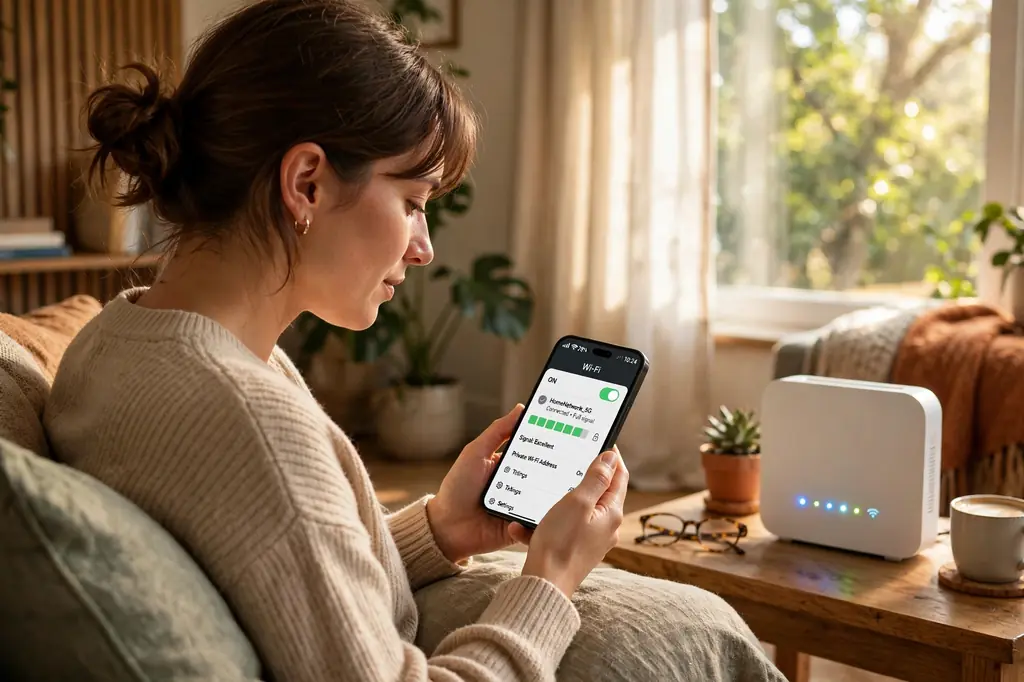
Remini uploads your photo to its servers and downloads the enhanced result, so a weak connection is the most common reason the app hangs on the loading screen. Switch between Wi-Fi and mobile data to see if one works better. If you’re on Wi-Fi, move closer to your router or restart it. Run a quick speed test — if your connection is very slow or dropping packets, Remini will time out no matter what else you try. Also disable any VPN temporarily (see Fix 9).
Fix 3: Confirm Remini’s Servers Are Online
Even if other apps work, Remini’s own servers might be having a bad day. During peak times or maintenance windows, enhancement requests queue up or fail outright. Check community channels (Reddit’s r/Remini, X) for fresh outage reports. If you see “Oops! Something went wrong” along with widespread complaints, wait it out — trying repeatedly during an outage can trigger rate limits that block you even after servers recover.
Fix 4: Update the App to the Latest Version
Running an old Remini version is one of the top causes of crashes and broken features. Developers push updates regularly to fix bugs, patch security issues, and keep the app compatible with server-side changes. Open the Google Play Store (Android) or App Store (iPhone), search for Remini, and install any available update. Turn on auto-updates while you’re there so this doesn’t happen again. If you can’t update because your OS is too old, see Fix 12.
Fix 5: Clear the App Cache (Android) or Offload (iPhone)
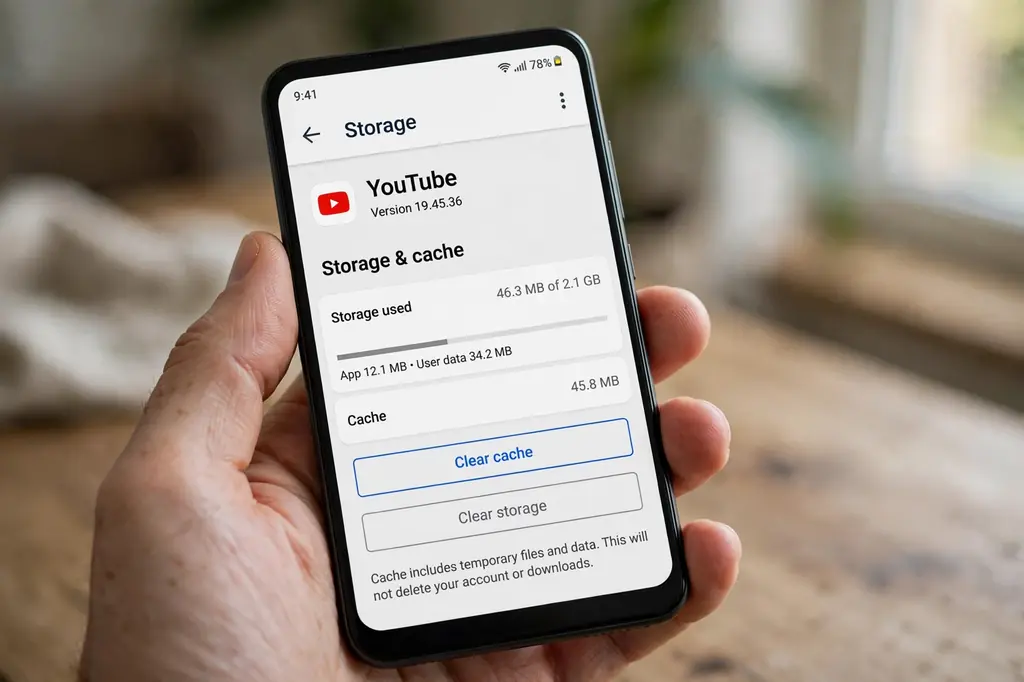
Corrupted cache files are a classic cause of the Remini app not working — crashes on launch, frozen editing screens, or endless loading. Clearing the cache deletes temporary files without touching your account or saved photos. On Android: Settings > Apps > Remini > Storage > Clear cache. iPhone doesn’t offer a cache button, so use Settings > General > iPhone Storage > Remini > Offload App — this removes the app but keeps your data, then reinstalls a fresh copy. If clearing cache doesn’t help, the next level is Clear data (Android only), but note you’ll be signed out afterward.
Fix 6: Free Up Storage Space
Remini needs breathing room to download, process, and save high-resolution results. If your phone is nearly full, enhancements fail silently or the app crashes mid-process. Check your available storage (Settings > Storage) and aim for at least 1–2 GB free. Delete unused apps, old downloads, and duplicate photos. On iPhone, the Offload App option in Fix 5 also frees space without deleting your data.
Fix 7: Restart Your Phone
It sounds cliché because it works. A restart clears stuck background processes, refreshes network connections, and resolves temporary system glitches that can break apps in confusing ways. Power your phone fully off, wait 30 seconds, and turn it back on — don’t just lock the screen. Then open Remini before launching anything else to give it a clean run.
Fix 8: Check Remini’s App Permissions
If Remini crashes when you pick a photo or can’t save results, it may be missing permissions. On Android, go to Settings > Apps > Remini > Permissions and make sure it can access your photos and media. On iPhone, check Settings > Remini for photo access. After a system update, permissions sometimes reset silently — worth a look even if you granted them before. If you’re not sure how to use the Remini app after permissions are fixed, our walkthrough covers every screen.
Fix 9: Disable Your VPN or Switch Networks
VPNs route your traffic through distant servers, which can confuse Remini’s backend or slow uploads to a crawl. Some VPN IP ranges get rate-limited or flagged outright. Turn off your VPN and try Remini on your regular connection. Similarly, restrictive networks — office, school, or public Wi-Fi with firewalls — may block the endpoints Remini uses. Switch to mobile data as a test; if Remini works there, the network was the problem.
Fix 10: Uninstall and Reinstall Remini
If nothing else worked, do a clean reinstall. This replaces all app files, clears hidden corrupted data, and resets the app’s configuration. Uninstall Remini, restart your phone, then download it fresh from the official Google Play Store or Apple App Store — never from third-party APK sites, which can ship broken or tampered builds. Sign back in with the same account you originally used, and check that your subscription is recognized before processing photos. Our Remini safety review explains why sticking to official sources matters.
Fix 11: Fix Login and Subscription Sync Issues
Sometimes the app opens fine but premium features don’t work, or you’re stuck in a login loop. Sign out of your Remini account completely, then sign back in using the exact same method you registered with (Apple, Google, or email) — mixing methods creates a second, empty account. If premium features are missing after paying, open your store’s subscription page and choose “Restore purchases.” For a full breakdown of plans and what syncs where, see our Remini subscription plans guide. If you keep seeing the “Oops!” error specifically, our dedicated how to fix the Remini Oops error guide covers that exact message in depth.
Fix 12: Update Your Phone’s Operating System
Newer Remini versions eventually drop support for old operating systems. If your phone can’t install the latest app update, the app will keep misbehaving. Check for OS updates: Android via Settings > System > System update, iPhone via Settings > General > Software Update. On very old devices that no longer receive updates, the desktop workaround still works — our Remini for PC guide shows how to use Remini through a browser or emulator without relying on the mobile app.
When to Contact Remini Support
If you’ve worked through all 12 fixes and the app still isn’t working, it’s time to escalate. Contact support through Remini’s official help center (the same support portal Bending Spoons maintains for the app). Include: your device model and OS version, the app version number, the exact error message or behavior, and which fixes you already tried. Screenshots help enormously. Expect a response within a few business days — and in the meantime, avoid sketchy “fix” tools or modded downloads promising to repair the app; they introduce more risk than they remove.
Frequently Asked Questions
Why is my Remini app not working all of a sudden?
The most likely cause is a temporary server outage or a network problem on your end. Check whether Remini’s servers are online, verify your internet connection, then force-close and reopen the app. Sudden failures that affect all features at once are almost always server-side.
Why does Remini keep crashing on my phone?
Frequent crashes usually come from corrupted cache data, critically low storage, or an outdated app version. Clear the cache (Fix 5), free up at least 1–2 GB of storage (Fix 6), and update to the latest version (Fix 4). If crashes persist, do a clean reinstall from the official app store (Fix 10).
Remini is stuck on the loading screen — how do I fix it?
A stuck loading screen means your photo isn’t reaching Remini’s servers or the result isn’t coming back. Switch from Wi-Fi to mobile data (or vice versa), disable any VPN, and retry. During peak hours, server queues can also cause long waits — try again later.
Why won’t Remini let me log in?
Login failures happen when you use a different sign-in method than the one you registered with — Apple, Google, and email each create separate accounts. Sign in with your original method. If you forgot your password, use the reset option on the login screen, and double-check that your internet connection is stable.
My Remini premium features are not working even though I paid. What should I do?
Sign out and back in with the exact account that made the purchase, then use “Restore purchases” in your store’s subscription settings. Subscription receipts are tied to your app-store account, not your Remini login — a mismatch is the most common cause.
Does Remini work without the internet?
No. Remini processes enhancements on its own AI servers, so it requires a stable internet connection. There is no offline mode — if your connection drops mid-enhancement, the job fails and you’ll need to retry.
Why does Remini say “Oops! Something went wrong”?
That error means the app couldn’t complete your request — usually because of server issues, a poor connection, or hitting a processing limit. We have a dedicated guide on fixing the Remini Oops error that walks through every cause and solution for that specific message.
Is there an alternative if the Remini app won’t work on my device?
Yes — you can use Remini through a web browser or an Android emulator on your computer, which bypasses mobile app issues entirely. Our Remini for PC guide covers both options step by step.
Conclusion
When the Remini app is not working, the fix is usually simple: confirm the servers are online, check your internet, update the app, clear the cache, and restart your phone. Those steps resolve the overwhelming majority of crashes, frozen screens, and login failures. If the problem survives all 12 fixes above, reach out to Remini’s official support with your device details — and steer clear of unofficial “repair” downloads that can compromise your phone.
Disclaimer: We are not affiliated with Bending Spoons (Remini). All trademarks belong to their respective owners. This article is for informational and educational purposes only.
About the author: Hi, I’m Rahul Sharma — a tech enthusiast and digital content creator from India. For over 4 years I’ve helped users find safe, reliable apps, and I founded ReminiDownload.online to make photo enhancement accessible to everyone without expensive subscriptions. Note: I am not affiliated with Bending Spoons or the developers of any app mentioned here; all rights belong to their respective owners. I share information for educational purposes only and never host harmful files — your safety is my top priority.
