

Fix Remini Oops Error – Complete Troubleshooting Guide

Here’s how to fix Remini Oops error fast: check your internet connection, force-close and relaunch the app, and clear the app cache. Remini shows its “Oops Something Went Wrong” message whenever it can’t complete a request. These three steps alone resolve the error for most users. If they don’t work, update the app, switch networks, or reinstall Remini — our full walkthrough below covers 10 proven solutions for both Android and iPhone.
Nothing kills your editing flow like tapping “Enhance” and watching Remini throw an “Oops, Something Went Wrong” message back at you. This generic error can appear when enhancing photos, signing in, or even just opening the app. The good news: it almost always comes down to a handful of fixable causes — connectivity hiccups, overloaded servers, outdated app versions, or corrupted cache data. Let’s diagnose yours and fix it.
Table of Contents
What Does the “Oops Something Went Wrong” Error Mean?
Remini uses “Oops, Something Went Wrong” as a catch-all message for failed requests. Unlike specific errors (login failures, payment issues), it doesn’t tell you what broke — so you have to work through the likely causes systematically. The rest of this guide walks you through how to fix Remini Oops error step by step, from the quickest checks to a full reinstall.
| Cause | How common | Quick test |
|---|---|---|
| Unstable internet connection | Very common | Other apps/websites also load slowly |
| Remini server overload | Common at peak hours | Error appears for everyone; check social media reports |
| Corrupted app cache | Common | Error started after weeks of normal use |
| Outdated app version | Common | You haven’t updated in a while |
| Account/session glitch | Occasional | Error appears only when logged in |
| VPN or DNS interference | Occasional | You use a VPN or custom DNS |
| Modded APK issues | If using a mod | You installed Remini outside the Play Store |
| Device storage full | Rare | Phone warns about low storage |
10 Proven Solutions to Fix the Remini Oops Error
Work through these in order — most users never get past step 4.
Solution 1: Check Your Internet Connection
Remini processes enhancements on cloud servers, so a shaky connection is the #1 cause of this error. Switch between Wi-Fi and mobile data, move closer to your router, or toggle Airplane Mode on and off for 10 seconds to force a fresh connection. Then retry the enhancement.
Solution 2: Force-Close and Relaunch the App
A stuck background process can keep failing silently. On Android, open the recent-apps view and swipe Remini away; on iPhone, swipe up from the bottom (or double-press Home) and dismiss it. Wait 10 seconds, then reopen the app and try again.
Solution 3: Clear Remini’s Cache (Android)
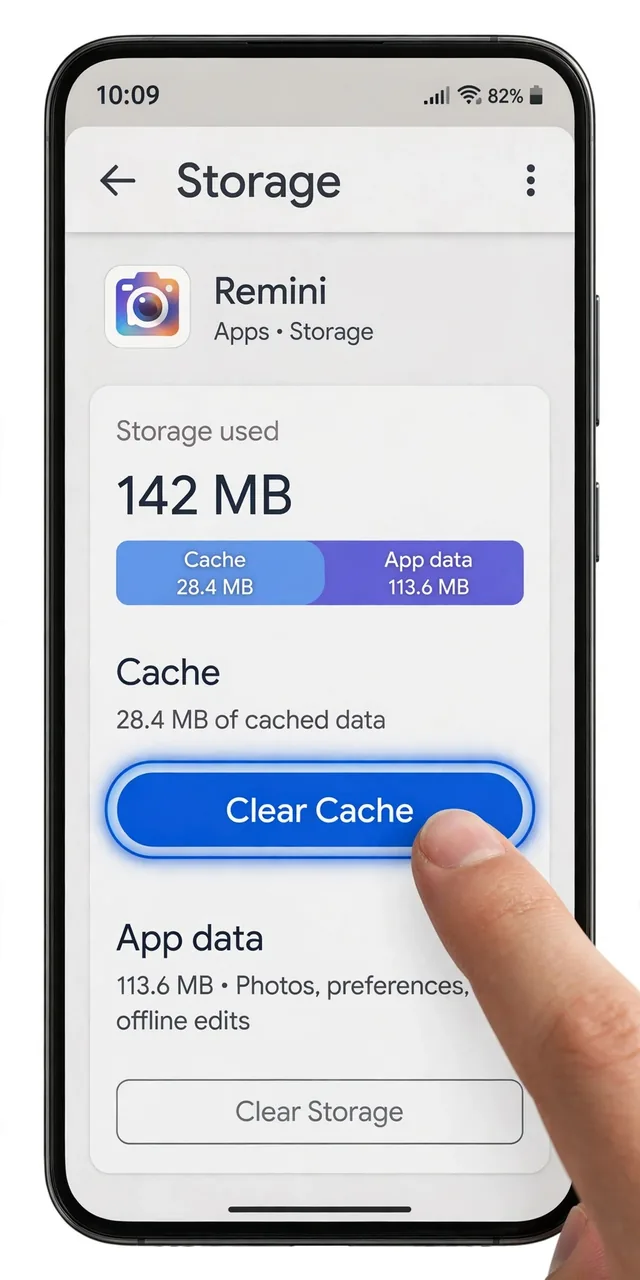
Corrupted temporary files are a classic trigger. Go to Settings → Apps → Remini → Storage & cache and tap “Clear Cache” — not “Clear Storage,” which wipes your login too. Relaunch the app and test.
Solution 4: Update Remini to the Latest Version
Older builds break when Remini updates its servers. Open the Google Play Store or Apple App Store, search “Remini,” and install any pending update. If auto-update is off, turn it on to avoid this in future.
Solution 5: Log Out and Log Back In
Session tokens expire or corrupt. In Remini, open Settings/Profile, sign out completely, force-close the app, then sign back in with the same account. This refreshes your authentication and often clears the error instantly.
Solution 6: Switch Networks or Disable VPN
Some networks throttle or block Remini’s servers. Try switching from Wi-Fi to mobile data (or vice versa). If you use a VPN, disable it first — a VPN exit node can look suspicious to Remini’s servers. Conversely, if your ISP is the problem, a reputable VPN can help (see the FAQ).
Solution 7: Free Up Device Storage
Remini needs working space for temporary files. If your phone is nearly full, delete unused apps, clear downloads, or move photos to cloud storage. Aim for at least 1–2 GB of free space before enhancing large images.
Solution 8: Reinstall the App
A clean install wipes all corrupted data. Uninstall Remini, restart your phone, then install it fresh from the Play Store or App Store. Your photos stay in your gallery and your account data (credits, subscription) is tied to your login — just make sure you can sign back in.
Solution 9: Try the Official App Instead of a Mod
Modified APKs frequently trigger this error because they run outdated builds or patched servers that stop working after Remini updates its API. Install the official version temporarily — if the error disappears, the problem was mod-specific. Our Remini Mod APK guide explains the trade-offs honestly.
Solution 10: Wait and Contact Support
If nothing works, Remini’s servers may be down. Check Downdetector or social media for outage reports — if others complain too, waiting a few hours is the fix. Still stuck after 24 hours? Contact Remini support from inside the app (Settings → Help) with your device model, app version, and a screenshot.
How to Prevent the Oops Error in the Future
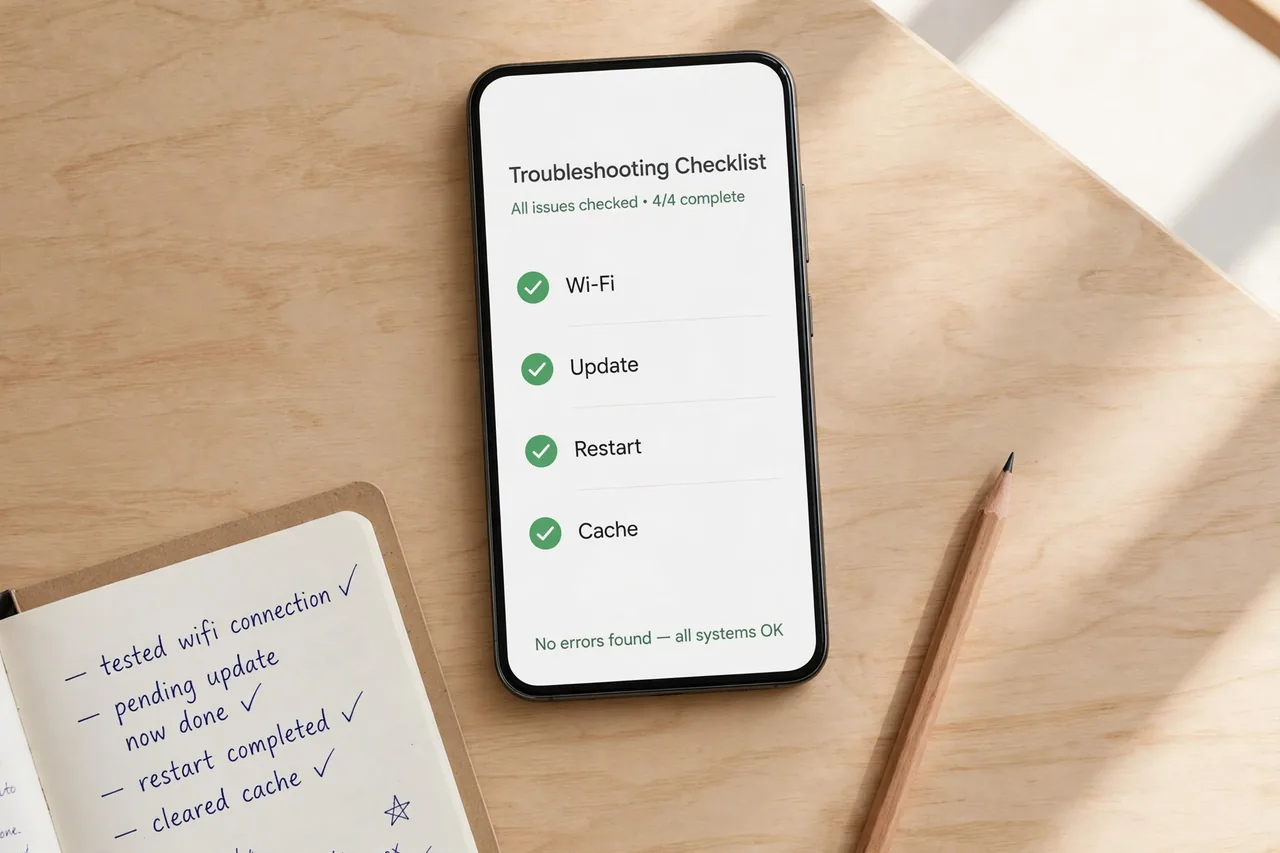
- Keep auto-updates on so you always run a server-compatible build.
- Clear the cache monthly before it accumulates corrupted files.
- Enhance on stable Wi-Fi rather than patchy mobile data.
- Don’t run Remini alongside a VPN unless you need one.
- Keep 1–2 GB of free storage as a buffer for temp files.
When the Problem Isn’t the Error — It’s the App
Sometimes the real fix is a backup plan. If Remini keeps failing during an important project, a solid alternative keeps you moving. Our roundup of the best Remini alternatives covers free and paid options for every use case. And if you’re new to the app entirely, our step-by-step Remini tutorial helps you avoid common mistakes from the start.
What does the “Oops Something Went Wrong” error mean in Remini?
It is a generic error message that appears when Remini cannot complete an action — usually an enhancement or login request. The underlying cause can be a lost internet connection, overloaded servers, an outdated app version, or corrupted app data. Work through the solutions in this guide from easiest to hardest.
How do I clear Remini’s cache on Android?
Open Settings → Apps → Remini → Storage & cache, then tap “Clear Cache” (not “Clear Storage”). This removes temporary files without deleting your account or settings, and fixes the error in most cases.
Is there a Remini app for iPhone users facing this error?
Yes. Remini is fully available on iOS. If you see the Oops error on an iPhone, start with the force-close-and-relaunch trick, then check for App Store updates, and offload the app (Settings → General → iPhone Storage → Remini → Offload App) if the problem persists.
Can a VPN fix the Remini Oops error?
Yes, in specific cases. If your ISP throttles Remini’s servers or your region faces routing problems, connecting through a VPN can restore a clean path. But always try the basic fixes first, and only use a VPN you trust.
Will reinstalling Remini delete my photos?
No. Your photos are stored in your device’s gallery, and your Remini account data (credits, subscription) is tied to your login. Reinstalling only removes the app’s local data — just make sure you can log back in before you uninstall.
Is the Oops error related to the mod version of Remini?
It can be. Modified APKs often run outdated builds, rely on patched servers, or get blocked after Remini updates its API. If you use a modded version and nothing else works, try the official app from the Play Store to see whether the error is mod-specific.
Disclaimer: We are not affiliated with Bending Spoons (Remini) or any app developer mentioned in this guide. All trademarks belong to their respective owners. This article is for informational and educational purposes only.
About the author: Hi, I’m Rahul Sharma — a tech enthusiast and digital content creator from India. For over 4 years I’ve helped users find safe, reliable apps, and I founded ReminiDownload.online to make photo enhancement accessible to everyone without expensive subscriptions. Note: I am not affiliated with Bending Spoons or the developers of any app mentioned here; all rights belong to their respective owners. I share information for educational purposes only and never host harmful files — your safety is my top priority.
