

Best Remini Settings for Perfect Photo Enhancement

The best Remini settings for photo enhancement are: Face Enhance for portraits, Old Photos Restorer for vintage prints, Unblur & Sharpener for blurry shots, medium enhancement strength, and HD export — always matched to your photo type instead of pushing everything to maximum. Choosing the wrong tool is the number-one reason Remini results look fake or plastic.
Remini doesn’t have one “best settings” preset. Its AI tools behave very differently depending on the input photo, and the official app adjusts many values automatically. What you can control — the tool you pick, the enhancement strength, and how you export — makes the difference between a natural-looking restoration and an over-processed mess. This guide breaks down the best Remini settings for every photo type, based on how the app’s AI actually works.
Table of Contents
Why Remini Has No Single “Best” Setting
Remini’s strength is also its trap: it rebuilds missing detail using deep learning models trained on millions of high-quality images. That means the same enhancement level can look stunning on one photo and uncanny on another. The models predict faces, skin texture, and edges — they don’t “see” your original pixels the way a sharpening filter does.
Three things decide your result quality:
- The tool you choose — Face Enhance, Unblur & Sharpener, Denoiser, Old Photos Restorer, Color Fixer, and Background Enhancer each target different problems.
- The enhancement strength — higher isn’t better; it invents more detail and creates more artifacts.
- Your source photo — a well-lit 2MP photo enhances far better than a dark 200KB thumbnail, no matter the settings.
If you’re new to the app, read our complete guide to using Remini first — it covers installation and the basic workflow step by step.
Quick Answer: Best Settings by Photo Type
| Photo type | Best tool | Strength | Extra step |
|---|---|---|---|
| Portraits & selfies | Face Enhance | Medium | Auto Color if skin looks flat |
| Old / faded prints | Old Photos Restorer | Medium | Scan at 600 DPI first, crop borders |
| Blurry or low-light | Unblur & Sharpener | Low–Medium | Denoiser first if grainy |
| Scans with color cast | Color Fixer | Low | Apply after restoration |
| Noisy high-ISO shots | Denoiser | Medium | Then light Face Enhance |
| Videos | Video Enhancer | Default | Short clips; quality depends on source |
| Social media thumbnails | Face Enhance | Medium | Export at highest resolution |
Enhancement Strength: Low, Medium, or High?
This is the single most misunderstood Remini setting. Many users assume maximum strength equals maximum quality — it’s the opposite.
- Low: Subtle cleanup — light noise reduction and gentle sharpening. Best for already-decent photos that just need polish. Faces stay natural.
- Medium: The sweet spot for most photos. Recovers real detail in eyes, hair, and edges without inventing much. Start here, always.
- High: Aggressive reconstruction. Useful only for severely damaged or tiny images where there’s almost nothing to lose — but expect plastic skin, shifted facial features, and invented textures.
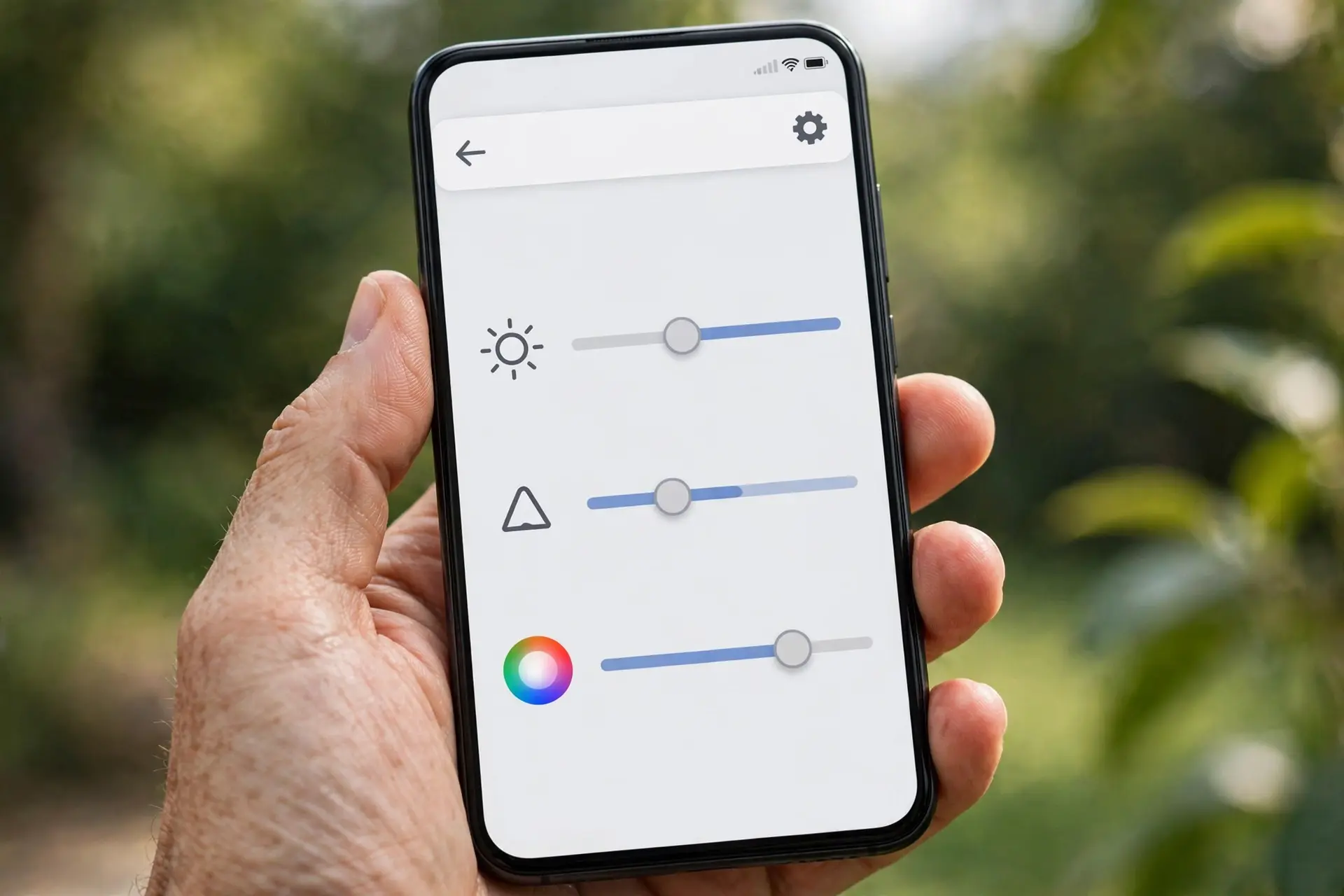
Rule of thumb: start at medium. If the result looks artificial, drop to low and compare using the before/after slider. The slider is your most important quality-control tool — drag it across faces and check eyes, teeth, and skin texture. For a full breakdown of common failures, see our guide on fixing the Remini “Oops” error.
Best Remini Settings for Portraits and Selfies
Portraits are Remini’s home turf — its face models are its strongest feature. The best settings here are straightforward:
- Select Face Enhance (not the generic Enhance) so the AI prioritizes facial geometry.
- Strength: Medium. High strength reshapes jawlines and gives eyes a glassy, uncanny look.
- Enable Auto Color only if the photo looks flat or washed out; skip it if the skin tones already look right — colorization is interpretive and can guess wrong.
- Retouch lightly. A single light pass on skin is fine; heavy smoothing erases the texture that makes a face look real.
- One pass only. Never run enhancement twice on the same output. The second pass feeds AI-generated pixels back into the model and amplifies invented detail — that’s where the infamous “AI face” look comes from.
For creative portrait styles rather than restoration, Remini’s AI Photos generator and filters work on the same principles — see our list of Remini AI filters for what’s available.
Best Remini Settings for Old or Damaged Photos
Vintage prints need the most preparation — and reward it the most. The app settings matter less than your source file here.
- Digitize properly: a flatbed scan at 600 DPI beats a phone snapshot. If you must use your phone, shoot in even daylight, avoid flash glare, and hold the camera parallel to the print.
- Crop before enhancing. Remove white borders and background surfaces — less noise for the model to interpret means cleaner output.
- Select Old Photos Restorer and keep strength at Medium.
- Colorize after, not during: if the photo is black-and-white or heavily yellowed, run restoration first, then apply the colorization tool on the clean result. Clothing colors in colorization are always a guess — skin tones usually land well.
- Export at the highest available resolution and save the original scan separately. Never overwrite your source file.

Our dedicated guide to restoring old photos with Remini walks through this workflow with examples.
Best Remini Settings for Blurry, Dark, or Noisy Photos
Low-quality sources need a staged approach — stacking the right tools in the right order:
- Denoiser first if the image is grainy (high ISO, dark room). Denoising before sharpening prevents the sharpener from amplifying noise into hard artifacts.
- Unblur & Sharpener at Low–Medium. This tool focuses on facial detail like eyes, skin, and hair. On already-clear photos it can feel over-processed, so go easy.
- Background Enhancer separately if the background is messy or pixelated while the subject looks fine — it smooths the scene without touching the subject.
- Never combine everything at once. Running denoise + unblur + color + retouch simultaneously gives the model too many degrees of freedom and produces the waxy look.
Best Remini Settings for Videos
Video enhancement in Remini follows the same principles but with tighter constraints:
- Use the dedicated Video Enhancer tool — photo tools don’t apply to video.
- Keep clips short; long videos take much longer to process and results vary frame to frame.
- Expect source-dependent results: a slightly soft 1080p clip improves noticeably, but a heavily compressed social-media download won’t gain real detail.
- Export at the highest resolution your plan allows.
For the complete walkthrough, see our guide to enhancing videos with Remini.
Batch Processing: Settings for Multiple Photos
Enhancing one photo at a time is fine for a handful of images, but for a whole album the batch workflow saves hours:
- Tap the Batch option and select multiple photos from your gallery.
- Apply one tool with one strength (Medium) to the whole set — don’t mix portrait and vintage tools in a single batch.
- Group similar photos together: one batch for portraits, another for old scans.
- Review every output before saving. Batch processing is convenient, but the AI’s misses (a shifted face, wrong color guess) are easy to overlook in bulk.
Batch is where the free tier’s daily enhancement limits bite hardest — regular users often upgrade here. Our Remini subscription plans breakdown compares what’s included at each tier.
Export and Resolution Settings
Your export setting decides how much of the enhancement you actually keep:
- Always export at the highest resolution available. Downscaling after enhancement throws away the detail you just recovered.
- Check before sharing. Open the exported file at full size once — compression artifacts from messaging apps (WhatsApp, Messenger) can undo your work. Share via cloud links or original-quality uploads when it matters.
- Keep originals. Save the enhanced copy as a new file and keep the source photo untouched, so you can re-enhance later when Remini’s models improve.
- Watermark note: free exports may carry a watermark. Our guide on removing the Remini watermark covers the legitimate ways to get clean exports.
You can also run all of this from a desktop — see our Remini for PC guide for the Windows and Mac workflow.
7 Mistakes That Ruin Remini Results
- Running enhancement twice on the same output — the top cause of plastic-looking faces.
- Maxing out strength on photos that only needed a light touch.
- Enhancing a screenshot or recompressed thumbnail instead of the original file.
- Using Face Enhance on landscapes — faces it can’t find, it may invent.
- Skipping the before/after slider — always compare before saving.
- Ignoring privacy: you’re uploading personal photos to cloud AI processing. Check Remini’s privacy practices and only enhance photos you own or have permission to edit.
- Expecting miracles from nothing — a 50-pixel face has no real detail to recover; the AI will invent one, and it won’t be the right person.
FAQs
What are the best Remini settings for old photos?
Old Photos Restorer at medium strength; scan at 600 DPI, crop borders, enhance once, then colorize; export at highest resolution.
Should I use high enhancement strength for better results?
No; high strength invents detail and causes artifacts. Medium is the best start.
Why does Remini make faces look fake or plastic?
Usually double enhancement or max strength; use one pass at medium and compare with the before/after slider.
Does Remini have a manual settings panel?
Mostly automatic; you pick the tool and strength, the AI does the rest.
What is the best export setting in Remini?
Highest resolution, save as new file, keep the original.
Can I save my favorite settings as a preset?
No custom presets; use batch processing for consistent settings across photos.
Do these settings work on Remini web and PC too?
Yes, the same tools apply since processing happens on Remini’s servers.
Conclusion
The best Remini settings aren’t a secret preset — they’re a method: pick the tool that matches your photo’s actual problem, start at medium strength, enhance once, compare with the before/after slider, and export at full resolution. Master that workflow and you’ll get natural, print-worthy results while everyone else is fighting plastic faces. For more ways to get the best out of the app, browse our Remini guides or compare Remini vs PicsArt if you’re weighing alternatives. Also check the official Remini site for the latest app updates and feature announcements.
By Rahul Sharma
