

How to Restore Old Photos with Remini: Complete Guide (2026)

Yes, you can restore old photos with Remini — scan or photograph the print cleanly, open Enhance, and faded faces, grain and yellowing improve in seconds. What it will not do is recover detail that is physically gone: torn, glared or missing areas are invented, not restored.
Last updated: October 29, 2026
Table of Contents
The Test Setup: Four Prints, One Rule
Instead of listing features, this guide runs Remini on four prints that cover most family albums: a faded colour print from the 1980s, a torn black-and-white portrait, a group photo with six faces, and a framed print photographed through glass, glare included. Each case gets the same verdict in three parts — what Remini fixed, what it faked, and what it could not save.
One rule governed every test: the originals were never touched. Each print was scanned at 600 DPI, and Remini only ever worked on a copy. That matters because Remini reconstructs detail rather than recovering it — overwrite a scan with an enhanced version and a future, better tool has nothing honest left to work from. Keep a folder called Original Scans, and experiment freely everywhere else.
The workflow is short: install Remini or open Remini’s official site, upload the copy, run Enhance once, and judge the slider at full zoom — not at thumbnail size, where everything looks impressive. New to the app? Our complete guide to using Remini covers the menus; this article is about judging results.

At a Glance: What Each Kind of Damage Really Gets
| Damage type | What Remini does | Honest verdict |
|---|---|---|
| Faded, yellowed colour | Rebalances colour, lifts contrast, sharpens faces | Genuinely fixed — its best case |
| Soft or blurry faces | Rebuilds eyes, hair and skin texture | Mostly fixed, check likeness at full zoom |
| Grain and print texture | Suppresses noise across the whole frame | Fixed, though skin can turn waxy |
| Light scratches and dust | Softens and blends small marks | Partly fixed — deep scratches survive |
| Black-and-white print | Sharpens first, then Colorize predicts colour | Convincing, but the colours are a guess |
| Torn corner or missing section | Fills the gap with plausible background | Faked — it cannot know what was there |
| Several faces, different sizes | Enhances large faces well, guesses small ones | Mixed — background faces drift most |
| Glare from photographing a print | Brightens and sharpens the glare patch itself | Not fixed — reshoot the photo instead |
| Writing, signs and dates | Rebuilds letter shapes approximately | Unreliable — proofread every character |
Remini is strongest where damage is even and the subject is still visible underneath it. It is weakest where information is missing entirely, because there its job changes from restoration to invention.
Case One: The Faded Colour Print
The print: a 1980s family snapshot, once bright, now washed toward yellow-pink. Faces are complete but soft, the sky is nearly white, and a red sofa has faded to rust.
What Remini fixed: almost everything that made this photo look old. One Enhance pass restored believable colour balance, returned depth to the faces, and sharpened hair and clothing edges without the crunchy look phone sharpening usually leaves. This is the core job in our unblur guide, and on an intact-but-faded print it works as advertised. A second pass added little and started smoothing skin, so one pass was the keeper.
What it faked: smaller background details. A patterned cushion came back with a tidier, invented pattern, and jewellery turned into clean shapes that were not quite the original pieces. Only the family member who owned that sofa would notice.
What it could not save: nothing important, because nothing was missing. That is the lesson of Case One — fading is a veil over the photo, not a hole in it, and veils are what this AI removes best.
Verdict: restore with confidence, keep the scan, and stop at one or two passes.

Case Two: The Torn Black-and-White Portrait
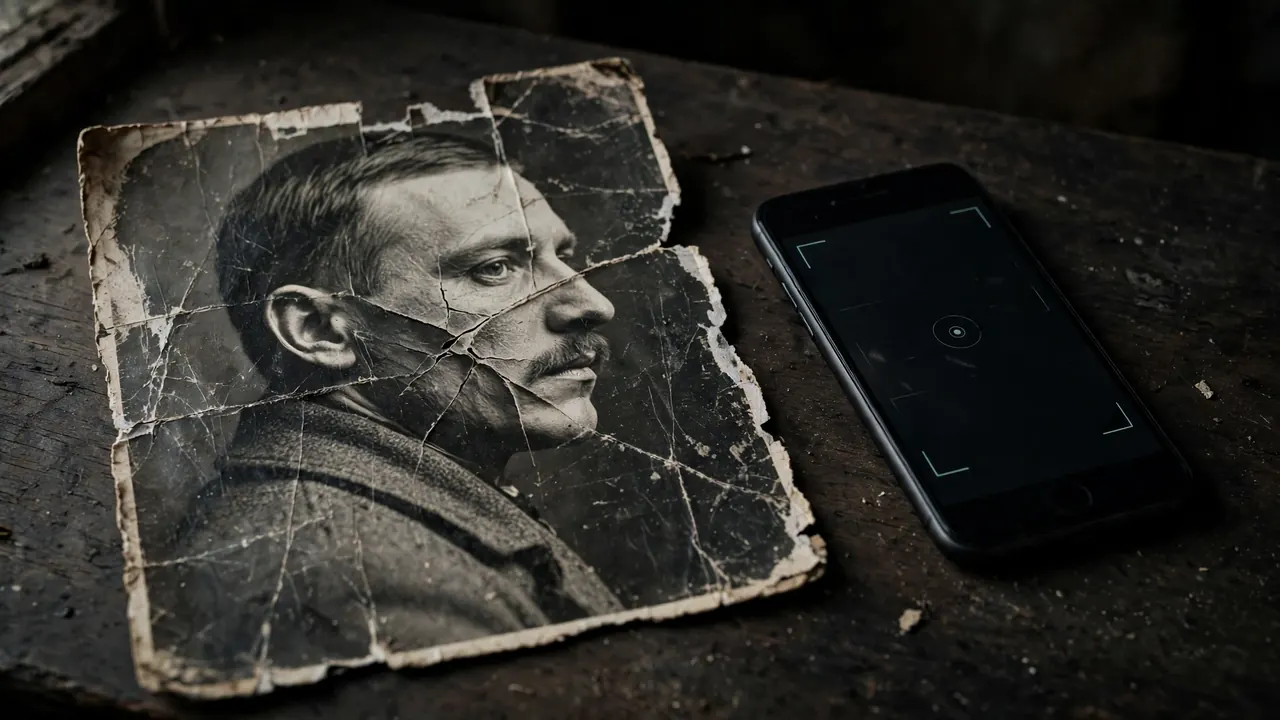
The print: a studio portrait, creased diagonally through one cheek, scratched across the hair, with the bottom corner torn away entirely — collar and background gone with it.
What Remini fixed: the surviving face, impressively. Grain dropped, the eyes and mouth regained definition, and the light scratches in the hair blended away. Run the restored version through Remini Colorize afterwards and it becomes warmer still — with the standing warning that every colour there is predicted, never recovered.
What it faked: the crease across the cheek. Remini painted plausible skin over it, and at full zoom that patch is smoother than the skin around it. The face still reads as the same person, but a print made for framing would show the repair.
What it could not save: the missing corner. The AI extended the background and guessed at the collar, producing a complete-looking rectangle that is partly fiction. Fine for a family chat; for an archive, label it a reconstruction and keep the torn scan as the record.
Verdict: a strong rescue of what survives, an honest-looking guess over what does not. A professional restorer still wins when the damage crosses the face itself.
Case Three: The Group Photo With Six Faces
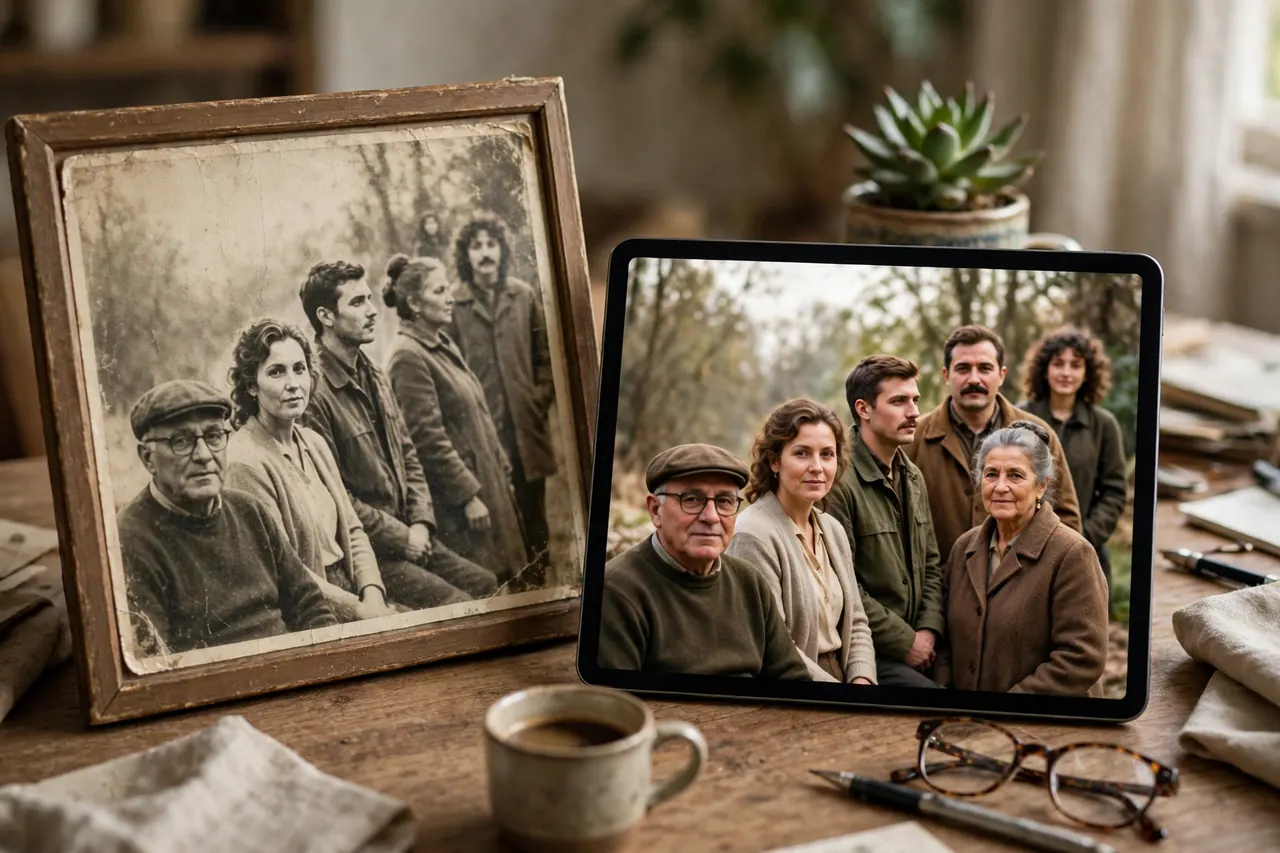
The print: a wedding group shot — three faces large in the front row, three smaller behind, all softened by a cheap lens and forty years of fading.
What Remini fixed: the front row, beautifully. The three large faces sharpened into clear eyes, natural hair and readable expressions, and the frame’s colour and contrast lifted with them. For anyone restoring this photo for the couple in front, the job is done in one pass.
What it faked: the back row, in proportion to distance. Smaller faces give the AI less evidence, so it contributes more of its own: one relative’s smile came back slightly reshaped, and another’s eyes looked polished in a way the family described as “almost her.”
What it could not save: consistency. No single pass enhances the front row firmly and the back row gently, although our Remini best settings guide helps you avoid the harshest defaults. The workaround: crop the photo into sections, enhance the back-row crop separately, and keep whichever version each family member prefers.
Verdict: excellent for the faces the camera loved, approximate for the faces it barely caught. Check small faces at full zoom before you print or share.
Case Four: The Photo-of-a-Photo With Glare
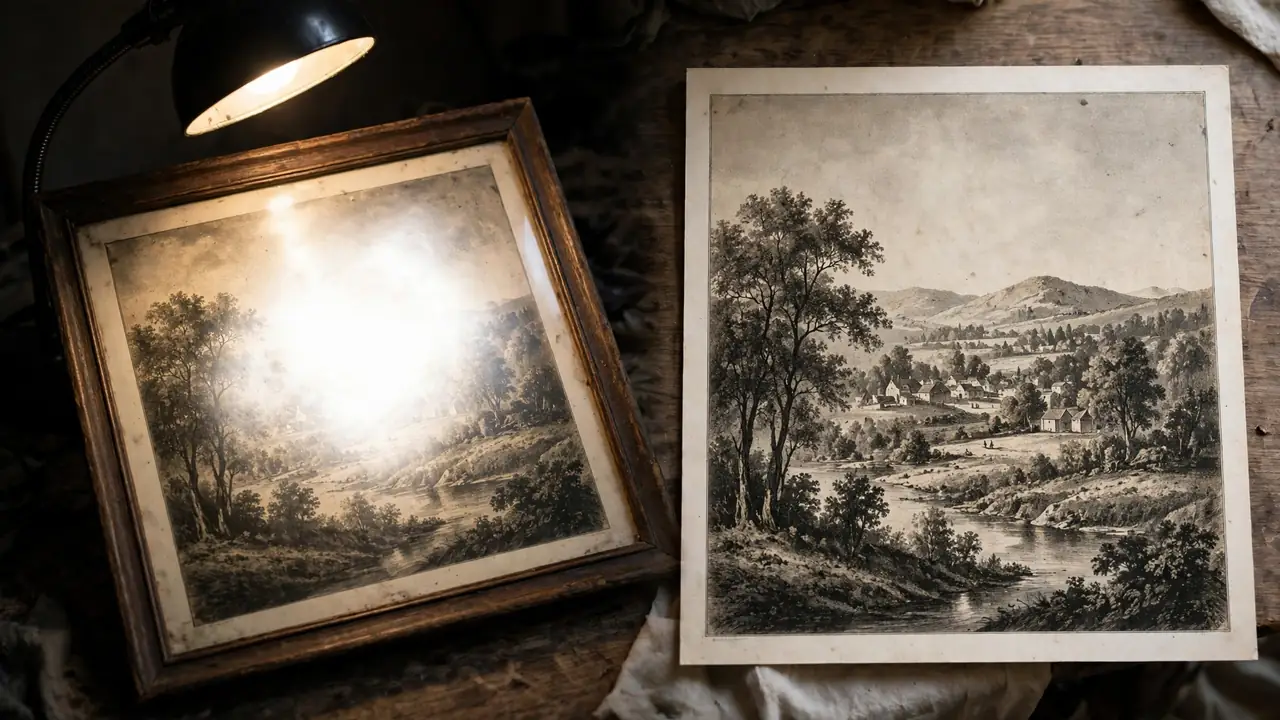
The print: a framed portrait behind glass that could not be removed. Photographed straight on, a lamp’s reflection whites out part of the forehead and one eye; photographed at an angle, the glare moves but the frame distorts.
What Remini fixed: everything except the problem. The non-glare areas sharpened well and the colour improved. Had the glare covered a sleeve or a wall, this case would read as a success.
What it faked: the edge of the glare patch, softening the white blob into a hazy glow like fog on the portrait — tidier, but still hiding the face underneath.
What it could not save: the eye under the glare, because the camera never recorded it. Those pixels are a photograph of a lamp, not of a person. Remini works on the copy you give it, and a bad copy fails before the AI starts.
The fix took two minutes and no software: curtains closed, lamp off, photo laid flat out of its frame in bright indirect daylight, phone parallel, flash off. The reshoot restored more than any pass had. Prefer a larger screen? Remini Web gives the same reshot file a bigger before-and-after view.
Verdict: never enhance a glare shot and call it restored. Reshoot first — it is the cheapest restoration step there is.
The Workflow That Worked Across All Four Cases
- Digitise properly. Scan at 600 DPI (1,200 for small prints), or photograph flat in indirect daylight with flash off. Clean glass, no borders, no glare.
- Crop to the photo itself. Scanner edges and table backgrounds waste the AI’s attention and can confuse its face detection.
- Enhance once, then judge at full zoom. Compare the before-and-after slider slowly, face by face, especially on group shots.
- Use a second pass sparingly. It helps stubborn fading and hurts skin quickly. Waxy faces mean you have gone one pass too far.
- Colourise last, and label it. Restore first, colour second — the result is an interpretation to enjoy, not evidence to cite.
- Save both versions, clearly named. Original scan untouched, restored copy at full size, so the project can be redone better in a few years.
Free versus paid matters mainly at album scale. The free tier is enough to test your own worst print before paying anything; a whole album in a weekend is where a short subscription earns its cost, through unlimited, watermark-free exports and faster processing.
The Honest Limits: Restoration, Reconstruction, Invention
Three different things happen inside one Enhance tap. Restoration is the colour, contrast and grain work — the photo’s own information, cleaned. Reconstruction is the sharpening of faces — the photo’s information, completed by a model trained on millions of other faces. Invention is everything past that line: the missing corner, the reshaped smile, the colour of a dress in 1962. Invention can be beautiful and still be invention.
So never let a restored version replace the original scan — descendants deserve to know which parts are evidence and which are a guess. And be careful with photos of people no longer here to correct the record: a slightly different face is a small error in a selfie and a real loss in the only portrait of a grandparent. When likeness matters more than sharpness, choose the gentler result.
Remini processes photos in the cloud, so images are uploaded for enhancement — avoid highly sensitive documents, and read the current policy on the official site first. Unofficial modified app builds are also advertised online; they are not distributed or endorsed by Bending Spoons and their contents cannot be verified, so the official app and web version are the sensible tools for irreplaceable photos.
Frequently Asked Questions
Can Remini really restore old photos, or does it just sharpen them?
It does more than sharpen. Remini rebuilds faded colour, suppresses grain and reconstructs soft facial detail, so an intact but faded print can look dramatically younger. It cannot recover areas torn away, hidden by glare, or missing from your scan.
How do I restore old photos with Remini step by step?
Scan at 600 DPI or photograph the print flat in indirect daylight, flash off. Open Remini, choose Enhance, upload the copy, and compare with the slider at full zoom. Save the result separately; keep the original scan untouched.
Can Remini fix a torn or creased photo?
Partly. Light scratches and shallow creases usually blend away, and surviving parts of a face restore well. A torn-off section is filled with a plausible guess, not the real content, so heavily damaged or important prints still belong with a professional restorer.
Why does my restored photo look waxy or slightly like a different person?
Over-enhancement. Each extra pass invents more detail and smooths more skin, and small or very blurry faces drift furthest from the original likeness. Use one or two passes, judge at full zoom, and keep the gentler version for portraits that matter.
Should I colourise a black-and-white photo after restoring it?
Yes, if you treat the result honestly. Restore first, then colourise. The colours are the AI’s prediction from clothing, skin and setting — often beautiful, never proof of what the scene looked like.
Is Remini free for old photo restoration?
The free tier includes a limited number of enhancements, enough to test a few family prints. Restoring a whole album usually needs a paid plan for unlimited processing and watermark-free exports.
Does a group photo restore as well as a single portrait?
Not evenly. Large front-row faces restore sharply; smaller background faces are rebuilt from fewer pixels, so they drift more. Cropping and enhancing sections separately gives you more control.
Can Remini fix glare on a photo I took of a framed print?
No — glare is part of the copy, and the face beneath it was never recorded. Reshoot the print out of its frame, in bright indirect light, flash off, phone held parallel. That reshoot improves the result more than any enhancement.
Conclusion
Four cases, one pattern: Remini restores superbly what time has faded, reconstructs convincingly what time has softened, and invents politely what time has taken. Give it a clean scan, one careful pass, and your full-zoom judgement, and most family prints come back sharper than expected. Give it a torn corner, a tiny face or a patch of glare, and it will still hand you a finished-looking photo — your job is to know which parts are memory and which are the machine’s best guess.
Related Remini Guides
- How to Unblur Photos with Remini
- Remini Colorize: Add Colour to Black-and-White Photos
- How to Use the Remini App: Complete Guide
- Remini AI Filters List
- How to Enhance Videos with Remini
- Best Remini Settings for Photo Enhancement
- Remini Web: Restore Photos in Your Browser
- How to Remove the Remini Watermark
- How to Fix the Remini Oops Error
- Remini vs PicsArt: Which Photo Editor Wins?
Written by Rahul Sharma
