

Remini Colorize: Turn Black & White Photos Into Color (2026)

Remini Colorize is Remini’s dedicated AI tool that automatically adds realistic color to black-and-white photos. Open the official Remini app, tap More, select Colorize, upload a grayscale photo, and the AI applies natural-looking color to faces, clothing, and backgrounds in seconds — no manual tinting or editing skills needed.
That one-sentence answer covers the “how,” but if you want professional-looking results instead of flat, artificial-looking color, there are a few things worth knowing first: how the AI actually picks its colors, which photos colorize best, what it costs, and where it still falls short. This guide covers all of it.
Table of Contents
What Is Remini Colorize?
Remini Colorize is one of the built-in tools inside the Remini app, the AI photo enhancer from Bending Spoons. While Remini’s flagship Enhance tool sharpens and upscales blurry photos, Colorize has a single job: converting black-and-white (grayscale) images into full color.
Unlike manual colorization in Photoshop, which requires painting adjustment layers onto masked regions by hand, Remini Colorize is fully automatic. The AI analyzes the tones, textures, and context of the image — faces, foliage, sky, clothing, interiors — and predicts plausible colors for each region. The result aims for the look of a modern color photograph, respecting the original lighting and detail.
Colorize is part of Remini’s broader photo-restoration toolkit. If you’re new to the app, our complete guide on how to use the Remini app walks through every tool. And if your old photos are also scratched, faded, or torn, you’ll want to read our guide on how to restore old photos with Remini first — damage repair and colorization are two separate steps that work best in sequence.
How to Use Remini Colorize: Step-by-Step
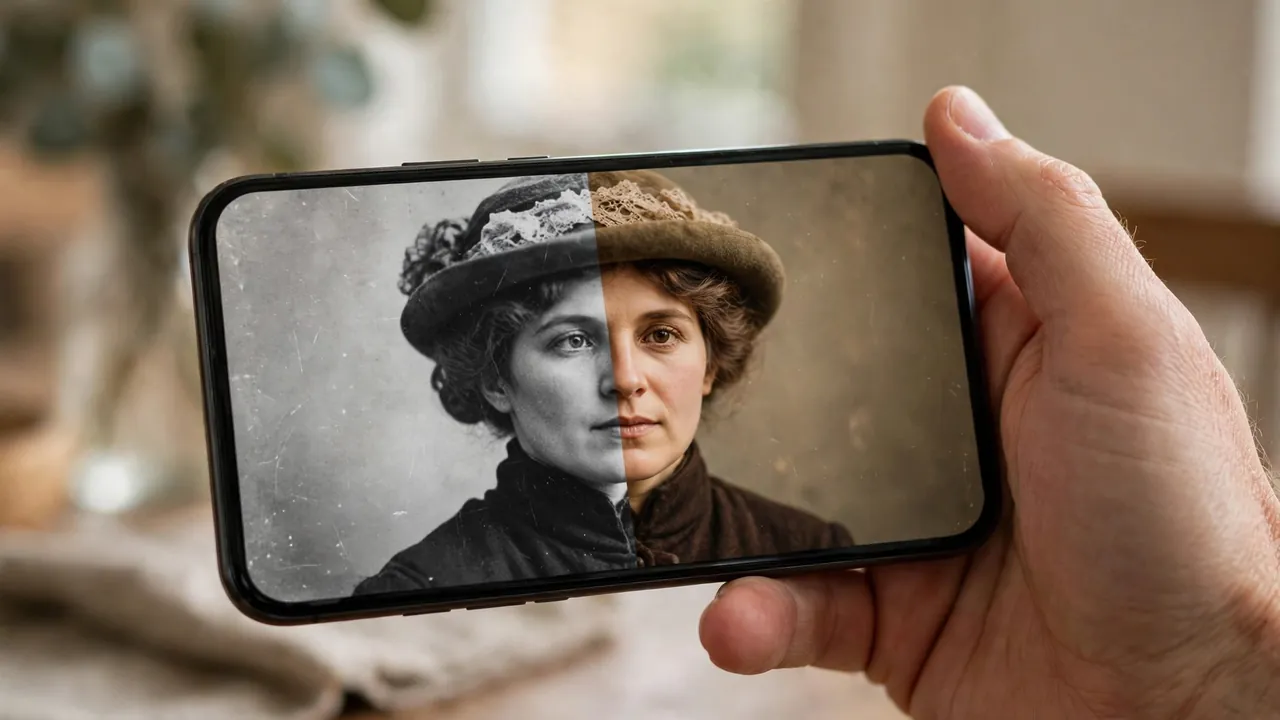
The workflow takes less than a minute per photo. Here is the exact sequence in the current app:
- Open the Remini app. Download it free from the Google Play Store (Android 7.0+) or App Store (iOS 14+), or use Remini Web in your browser.
- Go to the home screen and tap “More.” Colorize lives alongside the other specialty tools rather than on the main Enhance button.
- Select “Colorize” and upload your photo. Pick a black-and-white image from your gallery. The app accepts standard JPEG/PNG files.
- Tap the red check mark to start. Remini Colorize begins processing. On the free plan you’ll see a short ad while the AI works.
- Compare with the before/after slider. Remini shows the original grayscale and the colorized version side by side so you can check faces and edges for color errors.
- Save or share. Tap the download icon to save the colorized photo to your camera roll. If skin tones look off, try uploading again — a slightly different crop can change how the AI reads the scene.
Tip: Scan quality matters more than almost anything else. A clean, high-resolution scan of the original print — cropped of album borders, dust removed — gives the AI far better material to work with than a quick phone photo of a photo taken in bad light.
How the AI Decides Which Colors to Add
Remini Colorize is not “adding a tint.” It uses a machine-learning model trained on large datasets of color photographs to make contextual predictions about what colors each part of a grayscale image most likely was. This is the same class of technology behind Photoshop’s Neural Filters, but packaged as a one-tap tool.
- Skin tones get warm, lifelike hues — the model pays special attention to faces, since color errors there are the most noticeable.
- Scene elements like sky, foliage, wood, and fabric are matched to typical color ranges learned from real photos.
- Lighting is preserved. Because the AI works from the brightness and texture already in your photo, a soft window portrait stays soft and a bright street scene stays bright — the result follows the original exposure rather than flattening it.
- Detail is kept sharp. Colorization adds color without blurring faces or fine detail, so the restored photo still looks like the original, not a painting.
One important honest note: the colors are the AI’s best guess, not a record of reality. Nobody can recover the true colors of a 1940s dress from a grayscale negative — the physics of it is impossible. Remini produces a plausible, natural-looking interpretation. That’s exactly what you want for family albums and sharing with relatives, but it matters for archival honesty, which we cover below.
Remini Colorize vs Photo Restoration: What’s the Difference?
New users often confuse these two, and running them in the wrong order wastes time. They’re distinct tools with distinct jobs:
| Colorize | Photo Restoration | |
|---|---|---|
| Job | Adds color to grayscale photos | Repairs damage: scratches, creases, fading, stains |
| Input | Black-and-white photo | Damaged photo (color or B&W) |
| Output | Full-color version | Cleaned-up version of the same photo |
| Best order | Second | First |
The right workflow for damaged old photos: first repair the damage (scratches and fading confuse the colorization AI), then run Enhance to sharpen, and only then run Colorize. Each pass uses a fresh result, and combining them is how professionals revive decades-old family photographs. See our old photo restoration guide for the full sequence.
Best Types of Photos for Remini Colorize
Not every black-and-white photo colorizes equally well. After processing many test images, these categories give the best results:
- Portraits and family photos. Remini is famous for face enhancement, and Colorize is at its strongest on human subjects — faces get the most training attention, so skin tones land realistically.
- Clear, high-contrast originals. Photos with well-defined subjects and clean edges let the AI segment regions accurately. Faded, low-contrast prints produce washed-out color.
- Outdoor scenes. Sky, grass, trees, and streets have consistent real-world color ranges, so the AI’s predictions are most reliable.
- Single-subject compositions. Busy scenes with many small objects increase the chance of a miscolored region (a red shirt guessed as brown, for example).
Photos that struggle: extreme close-ups with heavy grain, images where the original is more damage than detail, and photos with unusual lighting (heavy sepia prints colorize better if you first convert them to plain grayscale).
Tips for More Accurate Colorization Results

These small adjustments make a real difference in output quality:
- Start with the cleanest scan you have. Fine detail helps the AI work out what each area of the photo actually is.
- Crop out borders and album edges. The AI treats everything in the frame as part of the scene — decorative borders get miscolored.
- Run Enhance first on faded originals. The colorization model works from tones and textures; sharpening them first improves color placement.
- Convert sepia tones to neutral gray first. If your print has a brownish age tint, a plain grayscale conversion gives the AI a neutral starting point.
- Try again if a region looks wrong. Re-running with a slightly different crop sometimes changes how the AI reads the scene.
- Check faces closely. Skin-tone errors are the most visible artifact — zoom in before printing or sharing.
- Pair it with the best Remini settings for enhancement so the colorized result is also sharp and detailed.
Remini Colorize: Free vs Premium
Colorize is available on both the free and paid plans, but the experience differs:
- Free plan: You can colorize photos, but you’re limited to a small number of enhancements per day, you’ll watch ads between processing, and exports may carry a Remini watermark. For occasional use — a handful of family photos — free is genuinely usable.
- Premium (Pro): Removes the daily processing cap, removes ads, and unlocks the heavier tools (like video enhancement) in full quality. If you’re batch-processing a whole family album or digitizing decades of prints, premium is the practical choice.
We break down every plan in detail in our Remini subscription plans guide. One tip: the free tier’s ads can be skipped by closing them with the X once they finish playing — you don’t lose your result.
Remini Colorize vs Other Colorization Tools
Remini isn’t the only AI colorizer. Here’s how it compares to the main alternatives, honestly:
- Photoshop’s Colorize Neural Filter: More control (you can adjust hues manually), but requires a Creative Cloud subscription and more effort. Better for precision work on single important photos.
- Palette.fm: A browser-based tool that lets you steer colors with text prompts (“blue dress, green fields”). More creative control than Remini’s one-tap approach; free exports are lower resolution.
- Dedicated photo apps: Similar one-tap AI colorizers, often with free daily credits. Worth trying if you only have a few photos.
- Remini Colorize’s edge: It’s one tap, mobile-native, and combines colorization with the same app’s enhancement and restoration tools. The best choice for reviving whole photo albums without editing skills.
For a broader comparison of the app itself against its rivals, see our Remini vs PicsArt guide and best Remini alternatives.
Honest Limits: What Remini Colorize Can’t Do
Accuracy matters to us, so here are the real limitations:
- Colors are guesses, not history. The AI cannot know the actual color of a 1950s car or dress. Results are plausible, not factual.
- Complex scenes miscolor. In busy photos, objects can be assigned wrong colors — a gray hat guessed as brown, a white wall guessed as beige.
- Damage confuses it. Scratches, dust, and heavy fading reduce accuracy — repair damage before colorizing.
- Share honestly. A colorized photo is an interpretation. If you share one publicly or archive it for family, say it was colorized with AI and keep the original black-and-white scan alongside it.
- Always keep the original. Save your untouched scan as a master file and treat colorized versions as copies. Better tools will arrive; you can’t redo the work if the original is overwritten.
FAQs About Remini Colorize
Is Remini Colorize free?
Yes — Colorize works on the free plan with a limited number of daily enhancements and ads between processing. Premium removes the daily cap and ads.
How do I colorize a black-and-white photo with Remini?
Open the app, tap “More,” select “Colorize,” upload your grayscale photo, and tap the check mark. The AI adds color automatically in seconds.
Are the colors accurate to the original photo?
Not exactly. The AI predicts plausible, natural-looking colors from context — it cannot recover the true original colors from a grayscale image. Treat results as an artistic interpretation.
What’s the difference between Colorize and photo restoration in Remini?
Restoration repairs damage (scratches, fading, stains); Colorize adds color to grayscale images. Repair damage first, then colorize.
Can I colorize photos on iPhone and Android?
Yes. Remini Colorize is available on both the iOS and Android apps, plus Remini Web in a browser.
Does Remini Colorize work on sepia photos?
It works best on neutral black-and-white images. Converting a brownish sepia print to plain grayscale first usually gives better color results.
Why does my colorized photo look wrong?
Heavy damage, low contrast, or unusual lighting can confuse the AI. Try a cleaner scan, crop the borders, run Enhance first, or retry with a slightly different crop.
Does Remini store my colorized photos?
Remini uploads photos to its servers for AI processing. The company states photos are deleted after processing (see the official Remini help center), but review the privacy policy if you’re colorizing sensitive images. For a full review, see our Is Remini Safe? guide.
Conclusion
Remini Colorize is the fastest way to turn black-and-white photos into believable color — one tap, no editing skills, and genuinely impressive results on portraits and family photos. For the best outcome, start with a clean scan, repair any damage first, and treat the colors as a beautiful interpretation rather than historical fact.
Try it on a family photo today: pair Colorize with our old photo restoration walkthrough and the best Remini settings, and decades-old memories will look like they were taken yesterday.
By Rahul Sharma, Tech Enthusiast & Digital Creator — Founder of ReminiDownload.online
Rahul Sharma is a tech enthusiast and digital creator from India who writes hands-on guides for mobile apps and AI tools. This guide was tested on the latest official Remini release. ReminiDownload.online is an independent publication and is not affiliated with, endorsed by, or connected to Bending Spoons, the developer of Remini.
