

Remini Colorize: Turn Black & White Photos Into Color (2026)

Remini colorize adds realistic colour to black-and-white photos in seconds, and on a clean portrait my verdict is simple: it is genuinely convincing. Skin looked warm rather than painted, clothes landed in believable shades, and the background stayed quiet. It struggled more on a busy street scene, and on a damaged scan it coloured the scratches too. So use it — but understand what it does. It does not recover the colours that were in front of the camera. It invents plausible ones, and this guide shows where that invention holds up and where it falls apart.
Last updated: October 29, 2026
Table of Contents
I Tested It on Three Photos, One by One
Most colourisation guides show one perfect before-and-after and stop there. That tells you almost nothing, because your photo will not be perfect. So I ran three different photos through it: a clean 1960s family portrait, a crowded group street scene, and a low-quality damaged scan. Here is what happened to each.
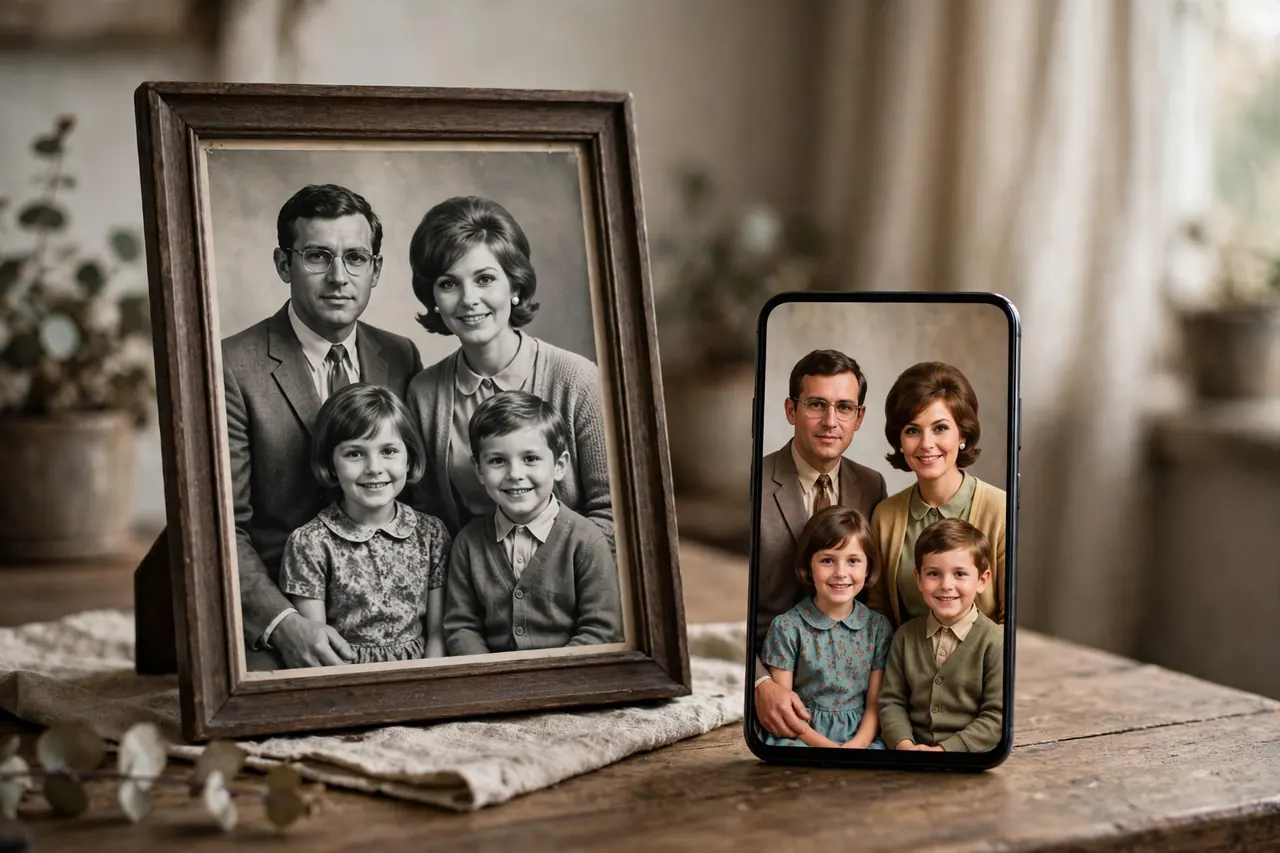
Test One: A 1960s Family Portrait
This was the easy win, and I expected it to be. The original was sharp, well exposed, faces large, a plain backdrop. Remini got the important things right. Skin tones came back warm and varied — not one flat orange wash across every face, the failure I see most in cheaper colourisers. Hair separated properly from skin, and the backdrop stayed soft and neutral.
What it had to guess, it guessed safely. Nobody can tell me the true colour of the dress in that photo, and the AI cannot know it either. It chose a muted, period-plausible shade rather than something loud and modern; a cardigan became deep and dull instead of bright red. None of these choices is verifiable: they looked right, which is not the same as being right. For sharing, looking right was enough. For the archive, I kept the original beside it and labelled the colour version as colourised.
Test Two: A Group and Street Scene
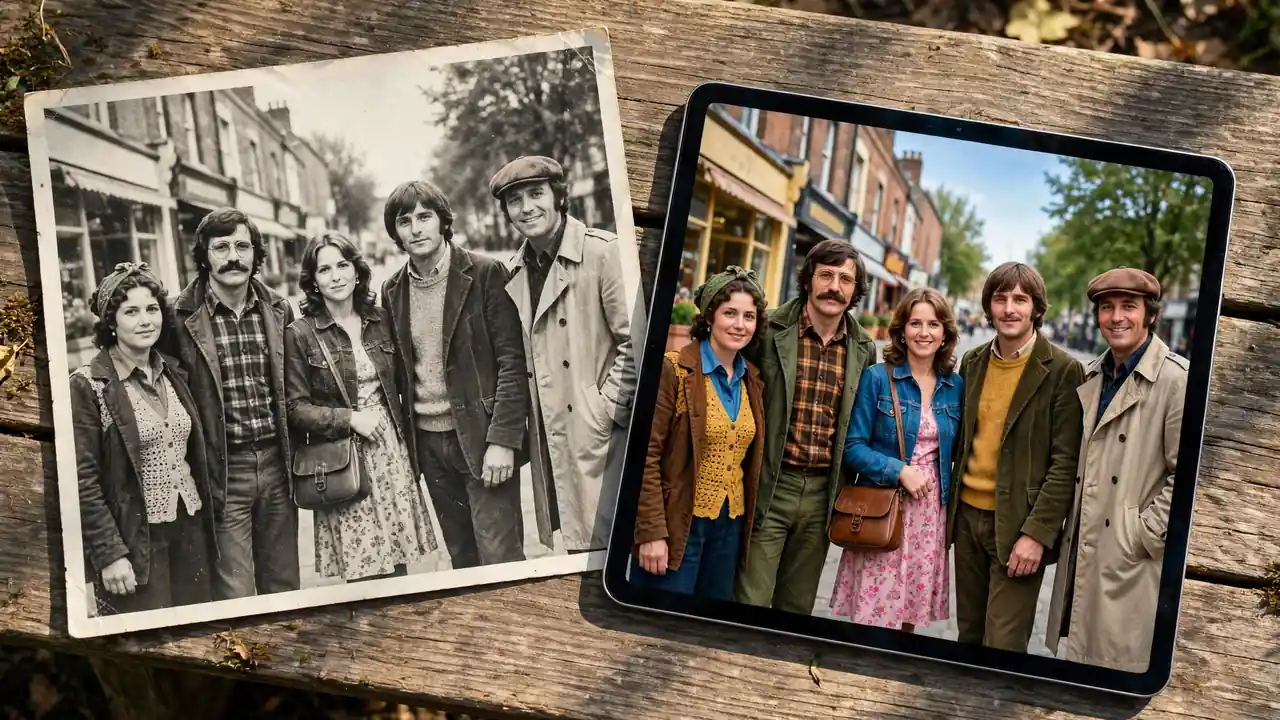
The street scene humbled it. This photo had eight or nine people, shopfronts, trees, a parked car and a lot of sky — far more regions to separate, and far more chances to go wrong.
The sky and vegetation were its best work: a clean, even blue, and natural greens. Front-row faces held up well too. The problems started further back and at the edges. Smaller faces lost warmth and drifted grey-brown. Two people standing close together, probably in different outfits, came out in near-identical shades, as if the AI had reused a guess. I also saw colour bleeding at edges — a shirt’s colour leaking into the background behind a shoulder, and a shop sign tinted in a way that made it harder to read.
At normal size it still looked lively and shareable. At full zoom it looked like what it is: a good guess by software that cannot ask anyone what they wore that day. Judge group shots at sharing size, not print size.
Test Three: A Low-Quality Damaged Scan
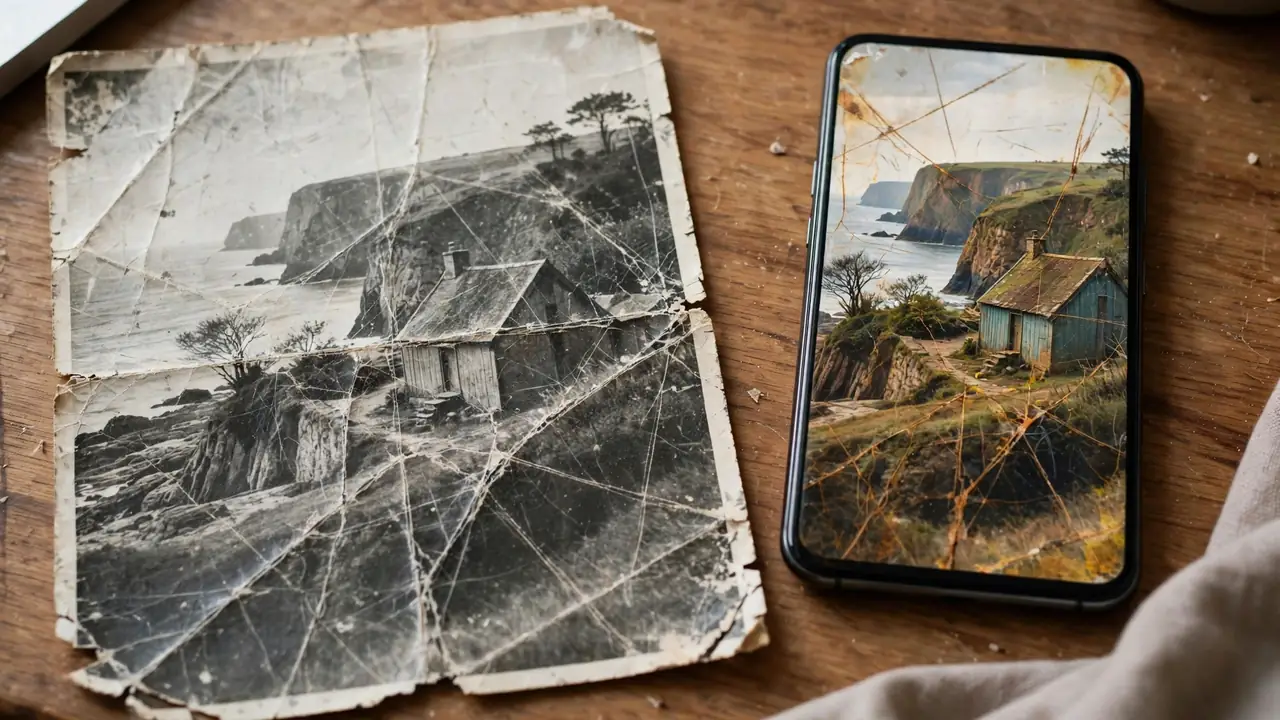
This test changed how I use the tool. The scan was faded, creased, scratched and soft — the kind of photo people actually dig out of a drawer. I colourised it without preparing it first, on purpose, to see the failure.
The AI coloured everything it was given, including the damage. A scratch across one face came back tinted, more visible in colour than in grey. The crease picked up a shadowy colour of its own. Faded areas got thin, watery colour while stronger areas coloured normally, so the result looked uneven in a way the original never did. Faces were recognisable and skin was better than expected, but the honest summary is this: colourising a damaged photo does not hide the damage. It decorates it. The fix is order, not effort — covered below.
How Colorize Works Inside Remini — and Where to Find It
Colorize is not the main Enhance button. It sits with Remini’s specialist tools, which is why people tell me they cannot find it. Open the official app from Remini, look for the More section on the home screen, and Colorize is in there. New to the app entirely? Our guide to how to use the Remini app maps the whole home screen first.
Underneath, the tool is a prediction model trained on large numbers of colour photographs. It has learned what skin, sky, grass, wood and common fabrics usually look like, and how brightness and texture in a grey image tend to map to them. It segments your photo into regions, identifies each one, and assigns colour — while preserving your original lighting, so a soft window portrait stays soft. Processing happens on Remini’s servers, not your phone, which is why it needs an internet connection and never works offline.
How to Colorize a Photo in Remini, Step by Step
- Open Remini and tap More on the home screen.
- Select Colorize and choose a black-and-white photo from your gallery or files.
- Crop it the way you want it first — borders and album edges in the frame will be treated as part of the scene.
- Tap the confirm or check-mark button to start. On the free plan, expect a short ad while it works.
- Review the result with the before-and-after slider. Zoom in on faces and on edges where objects meet; that is where mistakes live.
- Save the colour version as a new file. Never overwrite your only copy of the original scan.
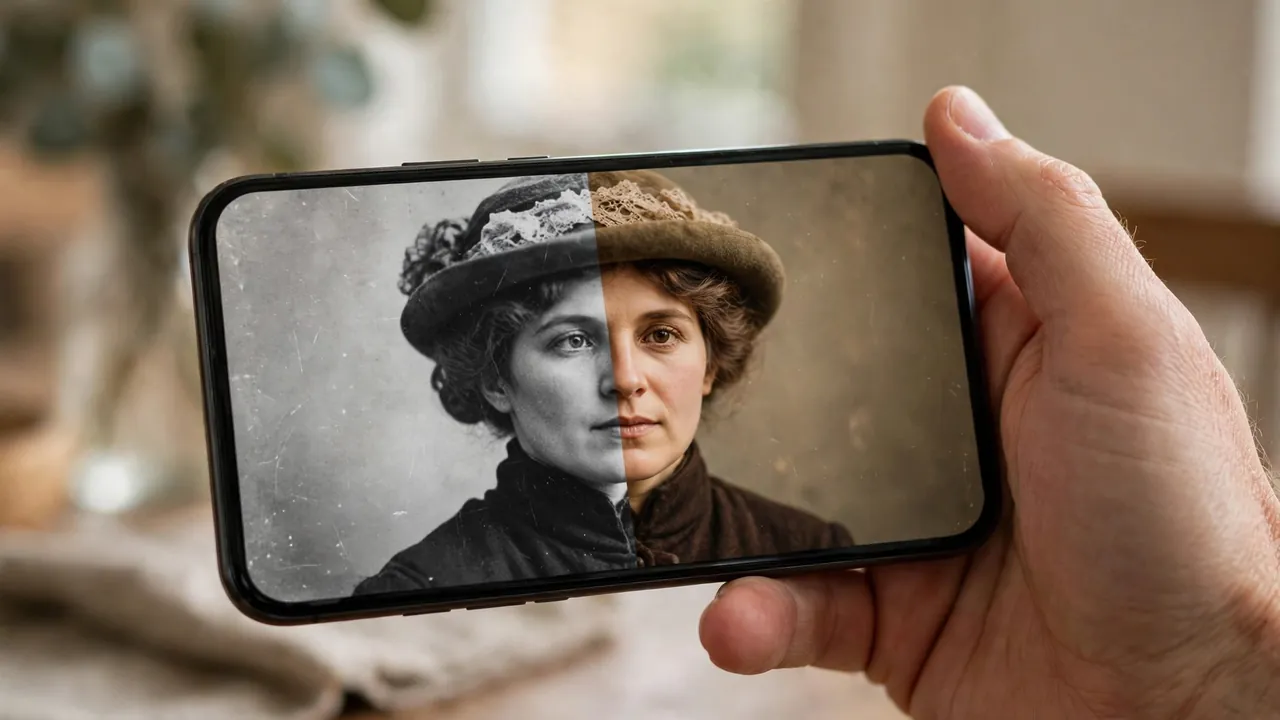
One tip: if a region looks badly wrong, re-running with a slightly tighter crop sometimes changes how the AI reads the scene. Sometimes. It costs another attempt, so I only retry when a face is involved — a wrong-coloured wall I can live with; a wrong-coloured grandmother I cannot.
The Correct Order: Restore and Enhance First, Then Colorize
Remember one sequence: repair, sharpen, then colourise — in that order, never the reverse.
My damaged-scan test shows why. The colour model misreads scratches, creases and fading; it treats a scratch as an object and colours it. So start with repair: our walkthrough on Remini old photo restoration covers removing damage first. Next, sharpen what is left. If the photo is still soft, use our guide to unblur photos with Remini — clearer edges give the colour model better evidence about where regions end. Only then colourise.
I re-ran my damaged scan in this order and the difference was not subtle. The scratch was mostly gone before colour arrived, so there was nothing left to tint, and colour sat evenly instead of pooling in damaged areas. Still not perfect — the underlying photo is genuinely poor — but it went from embarrassing to keepable.
Preparing Your Scans for the Best Results
Colour quality is largely decided before you open Remini. Four things matter most.
Resolution. Scan at the highest sensible resolution you can. The model works from detail; a small, compressed file gives it smooth grey blobs where a face should be. Photographing a print? Fill the frame, keep the phone parallel, avoid glare.
Grayscale quality. A clean, neutral grey image colourises better than a brownish sepia one — age tints confuse the model about what is already colour. With a strong sepia cast, convert a copy to plain grayscale first and colourise that.
Contrast. Faded, flat photos produce thin, washed-out colour, because the model has weak tonal separation to work from. A gentle contrast lift on a copy helps it separate faces from backgrounds. Our Remini best settings guide is a sensible starting point.
Cropping. Crop out borders, album pages and fingers. Everything inside the frame gets coloured, including the table underneath.
The Honest Limit: The AI Invents Plausible Colour
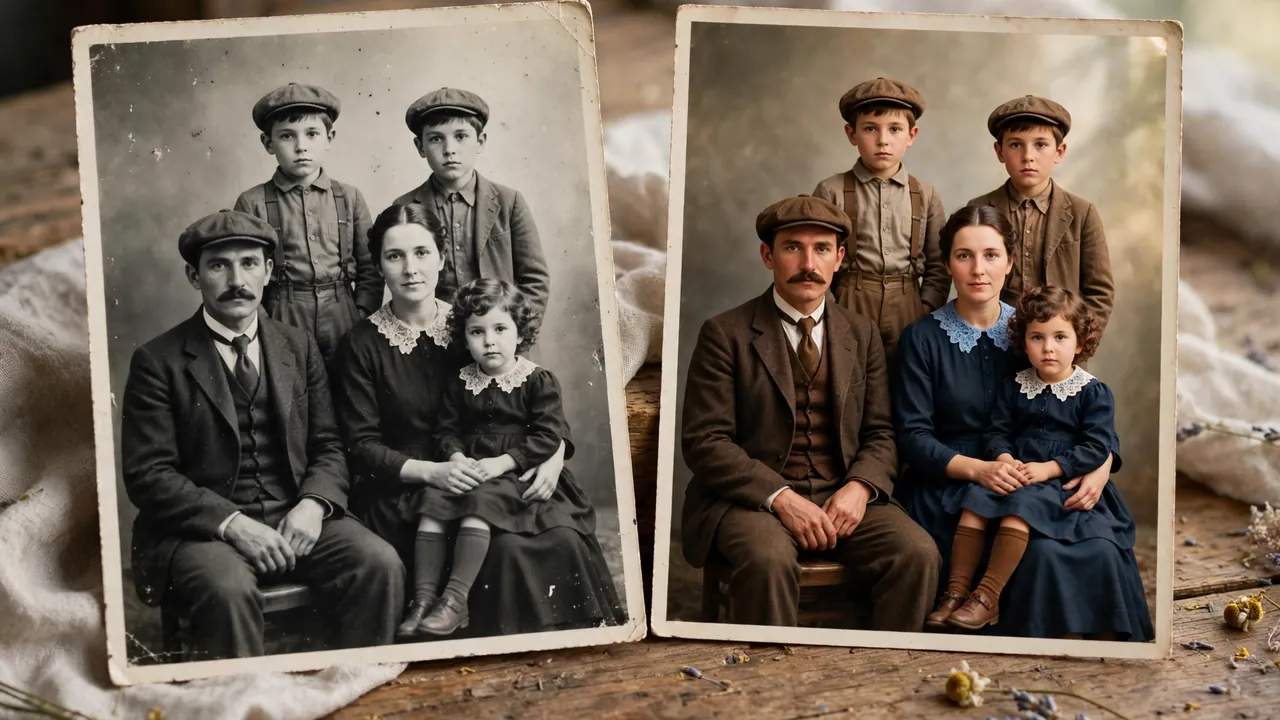
Plainly, because too many guides skip it: a black-and-white photograph contains no hidden colour information, and no AI can recover it. The film and scan recorded brightness only. When Remini colours a dress blue, it is not revealing that the dress was blue — only that dresses at that brightness, in that context, in its training data, were often blue.
That matters twice. First, family history: if you share a colourised photo of an ancestor, say it was colourised. A relative who remembers the actual green dress will otherwise assume the photo proves them wrong, when it proves nothing. Second, anything where colour itself is evidence — uniforms, flags, liveries, product colours. Never use an AI colourisation as a reference for those. Use it for what it is good at: making old photos feel alive again. Keep the original, label the colour version, and you get the pleasure without rewriting the record.
Free vs Pro: The Reality
Colorize is reachable on the free plan, and for a handful of photos that is genuinely enough. Free means limited attempts each day, ads while your photo processes, and exports that may be lower quality or watermarked depending on your region and plan. My three test photos fit inside free use; my retries and the damaged-scan re-run would not have, in one sitting.
Pro removes the daily friction — no ads, no rationing, fuller export quality. It earns its money on a batch job: a whole album, a box of scans, a deadline. It does not earn it on one portrait you will colourise once and frame. Try free first, on your hardest photo rather than your easiest, and let that result decide. Prices change often enough that I will not quote figures that could be stale; check the current plans in the app before paying.
A Brief Note on Alternatives
Remini is not the only way to colourise a photo, and for some jobs not the best way. Desktop software such as Photoshop’s colourisation filters gives manual control — you can correct a wrong colour region by region, which Remini does not allow. Web colourisers let you steer results with prompts or references, which helps when you know what colour something was. Remini’s advantage is not control; it is that colourisation sits in the same app as restoration and enhancement, with no learning curve. Exploring the app’s other colour and style tools? Our Remini AI filters list is the map. For one historically sensitive photo, though, I would choose a tool — or a human colourist — that lets someone correct the guesses.
Frequently Asked Questions
Is Remini Colorize free?
Partly. You can colourise on the free plan, but attempts are limited each day, ads run during processing, and exports may be reduced or watermarked depending on your region. Pro removes those limits. Free suits a few family photos; an album becomes slow very quickly.
Does Remini Colorize work on very old or damaged photos?
It will process them, but damaged photos are its weakest case — my third test coloured the scratches, creases and stains along with the people. Repair and enhance the photo first, then colourise, and even a poor old scan can produce a keepable result.
Are the colours accurate and true to life?
They are plausible, not true. The AI predicts colours from context and training data; it cannot recover the actual colours in a black-and-white original. Skin, sky and foliage usually convince. Specific items — a dress, a car, a uniform — are educated guesses, never historical fact.
Should I enhance before or after colorizing?
Before. Restore first, then unblur and enhance, then colourise last. Cleaner tones and sharper edges give the colour model better evidence, and damage left in place gets coloured instead of removed.
Does Remini Colorize work on group photos?
Yes, but weaker than on portraits. In my street test, front-row faces coloured well, while smaller background faces drifted grey-brown, nearby clothing picked up similar shades, and colour bled at crowded edges. Fine for sharing; check closely before printing.
Can I adjust the colours afterwards?
Not inside Colorize — it is a one-tap tool with no sliders or region correction. Your options are re-running it with a different crop, or adjusting hue and saturation afterwards in a general photo editor.
Does Remini Colorize work in Remini Web?
Remini offers a web version at remini.ai alongside the Android and iOS apps, though the exact tool set and plan limits on Web can differ from the apps and change over time. If Colorize is missing on Web, the mobile app is the reliable route.
Why did the colours come out wrong?
Usually one of four causes: a damaged or faded original, a strong sepia cast instead of neutral grey, low resolution or flat contrast, or a genuinely ambiguous object the AI guessed on. Fix the first three with restoration, a grayscale copy and a better scan, then retry. The fourth no setting can fix.
Conclusion
Remini Colorize earned my recommendation, with conditions. On a clean portrait it produced colour I would happily share with family. On a group scene it was good at sharing size and visibly guessy at full zoom. On a damaged scan it failed — until I repaired and enhanced first, in the right order, and then it recovered. That is the whole story: the colour is invented, the invention is often beautiful, and what you get depends far more on the scan you prepare and the order you work in than on the app. Start with your best portrait, keep your originals, label what the AI made — and enjoy seeing people you only knew in grey looking back in colour.
Related Remini Guides
- Remini Old Photo Restoration
- Remini AI Avatars
- Remini Baby AI
- Remini AI Headshots
- Unblur Photos with Remini
- Remini AI Filters List
- Remini Wedding AI
- Remini Pregnancy AI
- How to Use Remini App Guide
- Remini Best Settings
Written by Rahul Sharma
