
Remini vs Canva: Which AI Photo Editor Wins? (2026)

Remini vs Canva is repair versus design. Remini rebuilds a bad photo — blurry, faded, damaged, or too small — while Canva turns a good photo into a finished invitation, poster, or post. If the photo is the problem, start with Remini. If the design is the problem, start with Canva. Most serious projects need both, in that order.
Last updated: October 29, 2026
Table of Contents
The Scorecard
| Test | Remini | Canva | Winner |
|---|---|---|---|
| Restoring a damaged photo | Rebuilds faces, colour, and lost detail | Cleans and adjusts only | Remini |
| Upscaling for print | Enlarges while reconstructing detail | Resizes the design, not the detail | Remini |
| Background removal | Basic, secondary tool | One-click Background Remover on Pro | Canva |
| Building a social post | No canvas, templates, or text tools | Templates, layers, text, brand kits | Canva |
| AI photo tricks | AI Photos from your selfies | Magic Edit, Magic Eraser, image upscaler | Split — different tricks |
| Ease of use | One tap, nothing to learn | Easy for a design platform, more to learn | Remini |
| Free tier | A limited taste of enhancement | A genuinely usable design plan | Canva |
| Cost over 12 months | Weekly billing adds up fast | Pro costs more per year, does far more | Depends on the job |
I ran the same source photos through both apps, job by job, instead of comparing feature lists. The two AI suites sound similar in marketing and behave nothing alike. Remini’s AI is corrective: it reconstructs what a photo should have looked like. Canva’s Magic Studio AI is creative: Magic Edit changes what is in a picture, Magic Eraser removes things from it, and its upscaler and Background Remover prepare a picture for a design.
Test One: A Damaged Photo That Had to Go Into an Invitation
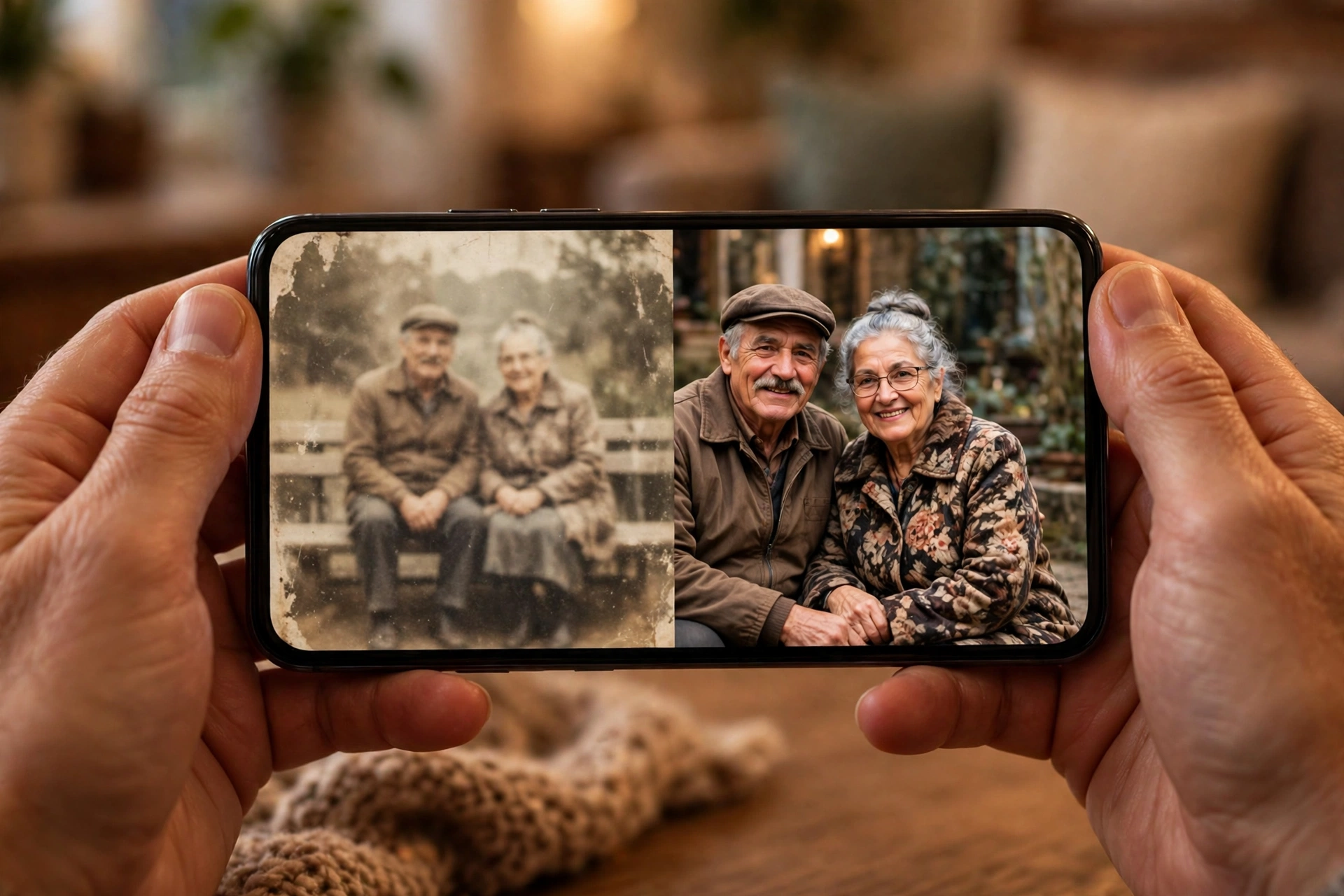
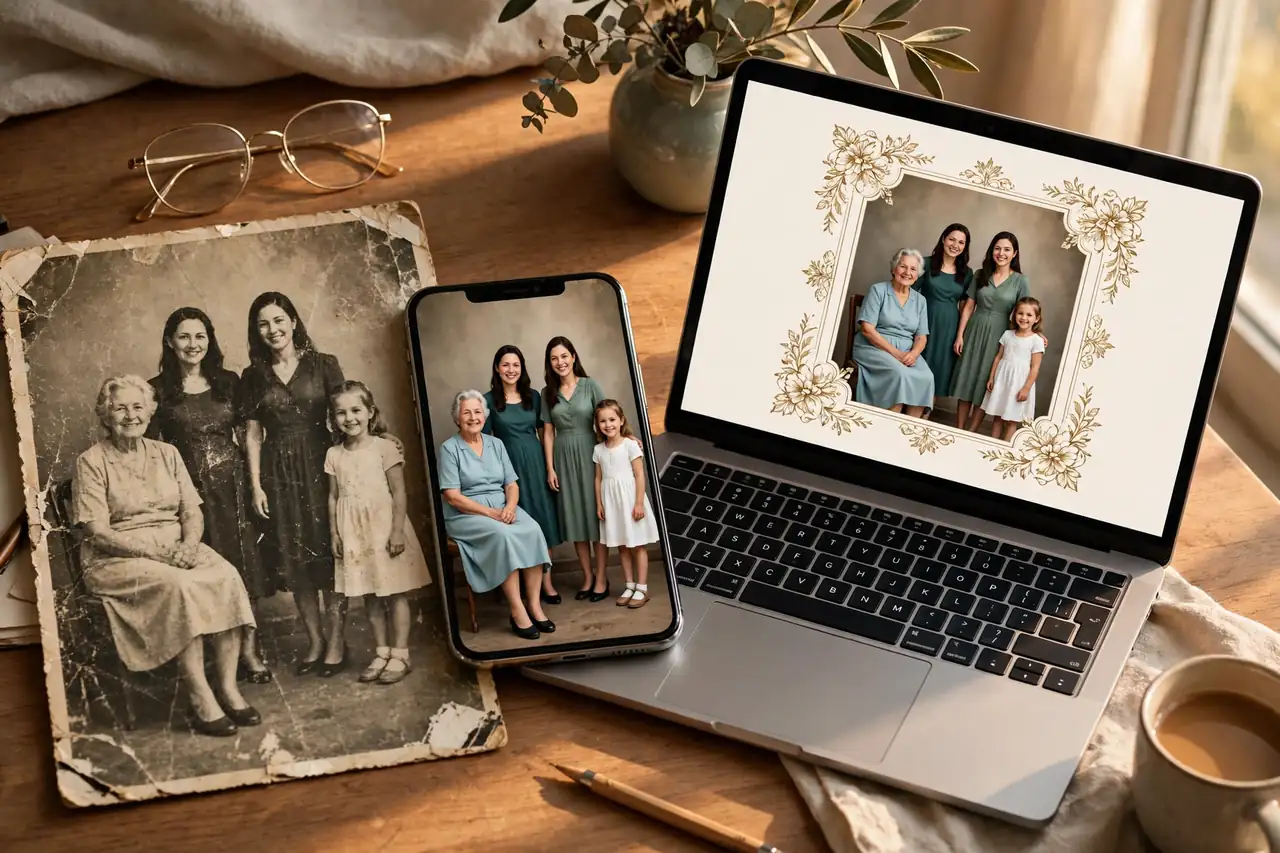
The hardest test in this comparison starts with a scanned family portrait — faded, soft, with one face small enough that the eyes are barely there — that then has to sit, looking respectable, inside a printed invitation.
Remini went first, because nothing else could. Its Enhance and restoration tools rebuilt the small face, pulled the colour back, and suppressed the grain and fading in seconds. Our guide to restoring old photos with Remini covers the full scan-to-result process. Canva, given the same scan, could raise brightness and contrast — the print looked cleaner, but the missing detail stayed missing. No slider in Canva reconstructs a face, and Magic Edit is built to change elements in a photo, not to repair one.
Then the verdict flipped. Once the portrait was restored, Remini had nothing more to offer — no template, no text, no layout. In Canva the restored photo dropped into an invitation design in minutes, with names, dates, and a border that made it look intentional rather than rescued.
One warning from this test belongs in every remini vs canva comparison: Remini reconstructs rather than recovers. On a very small or damaged face it generates a plausible face — usually convincing, occasionally slightly unlike the person. Keep the untouched scan, work on a copy, and check important faces closely before anything goes to print.
Verdict: Remini wins the restoration, Canva wins the invitation, and the job genuinely needs both.
Test Two: Upscaling a Low-Resolution Image for Print
Screens forgive small files; paper does not. For this test I took a low-resolution portrait that looked acceptable on a phone and sent it to be printed large.
Remini’s upscaling does more than stretch pixels. It enlarges the image while rebuilding facial detail, hair, and edges, so the print holds together instead of dissolving into soft blocks. Its limits are honest: the model is portrait-led, so a low-resolution landscape or product shot improves far less, and pushing a tiny file too far produces a polished guess. Our unblur guide explains which softness responds best.
Canva’s image upscaler can enlarge a photo inside a design, and for a mildly soft image headed for a poster that may be enough. But on a genuinely low-resolution source, Canva is mainly sizing the file for the layout, not rebuilding what the camera never captured.
Verdict: For print, enhance and upscale in Remini first, then lay out and order the print in Canva.

Test Three: Removing a Background for a Product Graphic
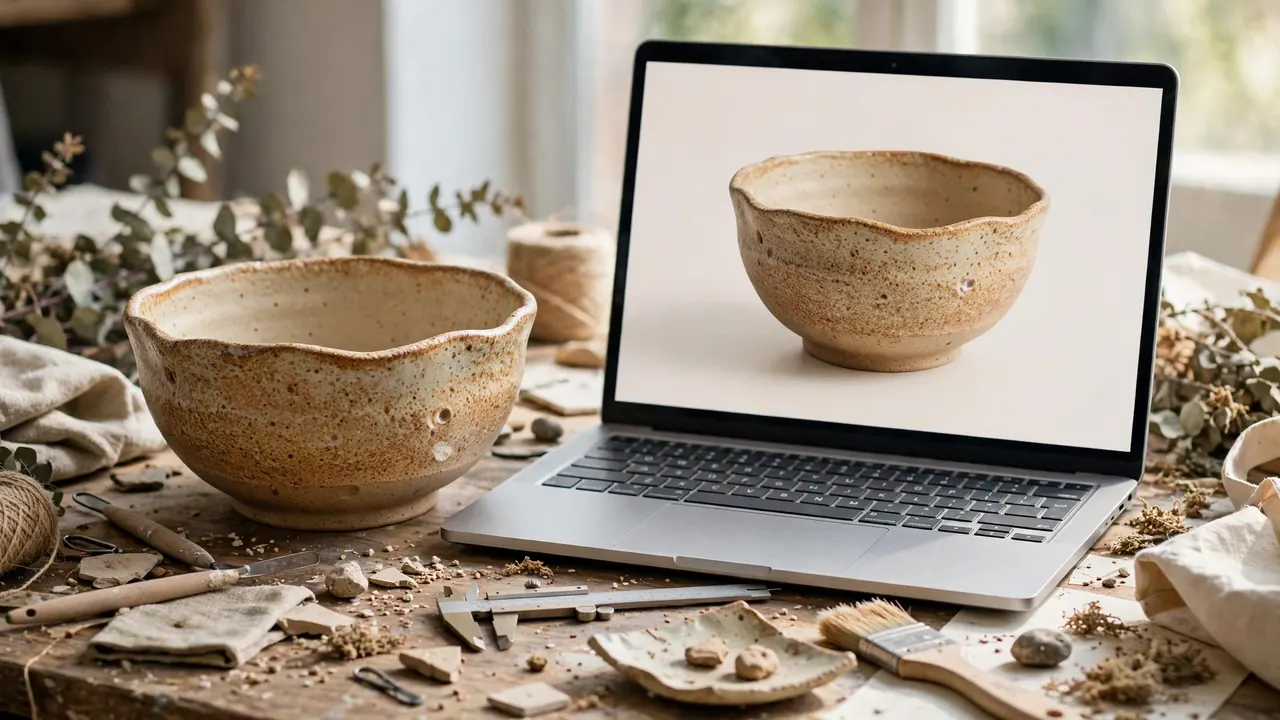
This test reversed the home ground. A small seller photographed a product on a cluttered table and needed it cut out cleanly onto a branded graphic.
Canva won outright. Its Background Remover — a Canva Pro feature — isolated the product in one click, Magic Eraser cleaned up distractions, and the cut-out dropped straight into a template with a price and a logo. The whole graphic took minutes.
Remini’s contribution was limited to improving the original shot first. If the product photo is noisy or soft, a pass through Remini makes the cut-out cleaner — but it has no design canvas, no templates, and no comparable workflow for building the finished graphic.
Verdict: Canva, clearly — with Remini as an optional first pass when the source photo itself is rough.
Test Four: Building a Complete Social Post
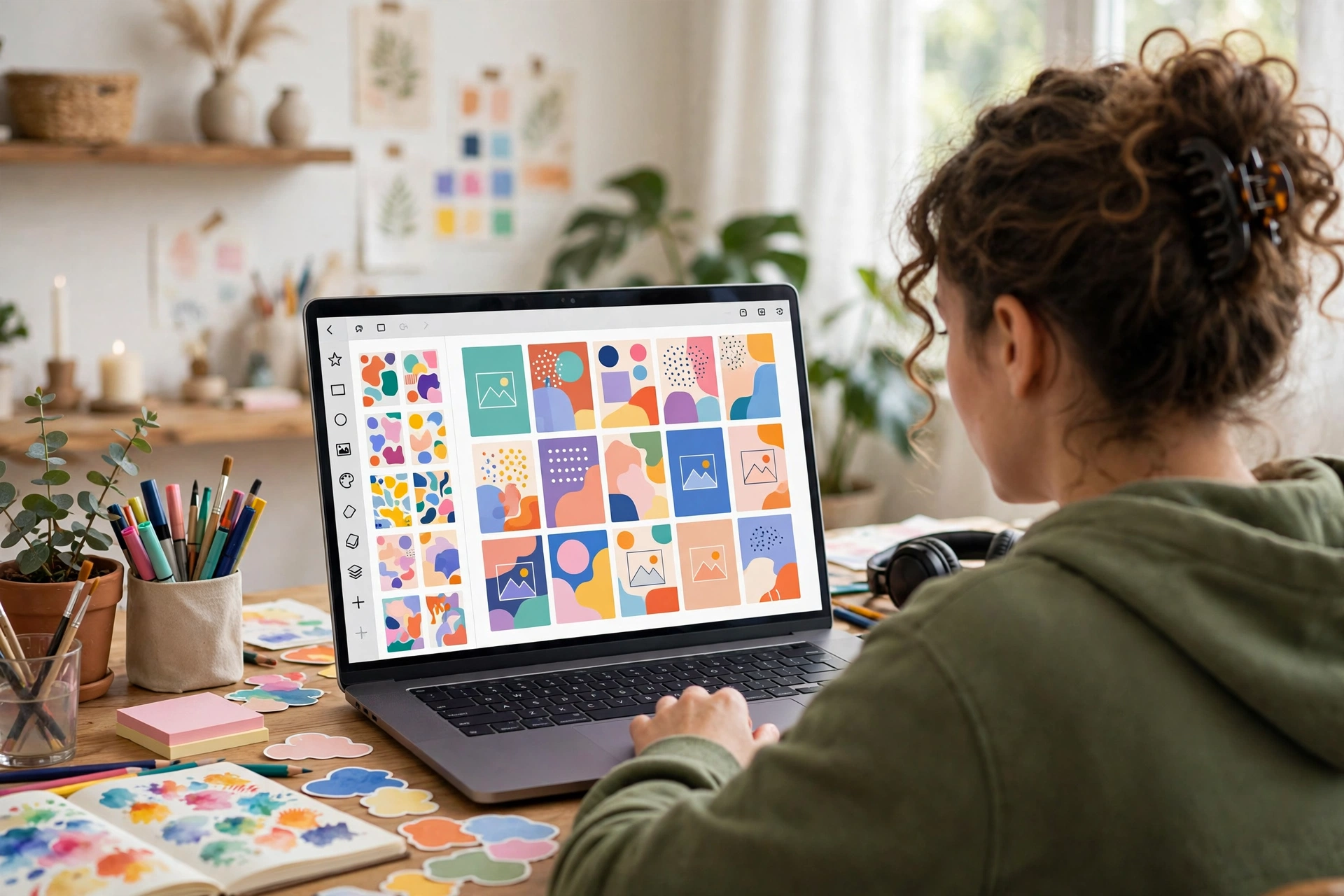
The final test started with a perfectly good photo and a deadline: a finished social post, correctly sized, with a headline and consistent branding.
Canva was built for exactly this hour. Templates sized for each platform, text tools, brand colours and fonts, Magic Resize to turn one design into every format, and Magic Write to draft the caption without leaving the editor. A non-designer can go from photo to scheduled post without opening anything else.
Remini’s answer was a better photo and nothing else — no layers, no text, no templates. That is not a flaw; it is the design. But Remini alone can never finish this job, while Canva finishes it every time, provided the starting photo is decent. New users can start with our guide to using the Remini app.
Verdict: Canva, uncontested. Remini only enters this workflow before Canva opens.
Pros and Cons, Honestly
Remini — pros: the strongest one-tap face enhancement and old-photo restoration in this comparison; genuine upscaling, not just resizing; colourising and AI Photos from selfies; results in seconds with nothing to learn.
Remini — cons: no design tools at all — no templates, text, layers, or layouts; little manual control when the AI guesses a face slightly wrong; portrait-led, so non-face images gain less; weekly billing is poor value; the free tier is a taster, not a toolkit.
Canva — pros: a huge template library and a genuinely usable free plan; Magic Edit, Magic Eraser, Magic Grab, and Background Remover in one editor; brand kits, collaboration, resizing, and scheduling; prints, presentations, and video in the same account.
Canva — cons: its photo AI cannot reconstruct faces, restore damage, or rescue a genuinely blurry photo; the best photo tools, including Background Remover, sit behind Canva Pro; and its breadth can tempt you into designing around a bad photo instead of fixing it first.
You will also see unofficial Remini mod builds advertised with premium features unlocked. They are not distributed or endorsed by the developer, and their contents cannot be verified — the official free tiers and trials are the sensible way to test the same tools.
What Each One Really Costs
Canva free costs nothing and is unusually generous: a large template library, basic photo editing, and a limited monthly AI allowance — enough for occasional posts. Canva Pro costs $144 a year, or $18 a month billed monthly, and unlocks premium templates, Background Remover, Magic Resize, far more storage, and a much larger AI allowance. Team plans cost more per person.
Remini offers a limited free tier. Its headline subscription runs around $9.99 a week, with a yearly plan around $69.99. Do the yearly maths: left running, the weekly plan passes $500 in a year, while Canva Pro’s $144 buys a complete design platform. Remini makes sense bought deliberately — restore a batch of family photos, then decide whether you still need it. Our Remini subscription plans breakdown tracks the tiers; regional prices vary, so confirm in your own store. Start either app officially — Canva or Remini.
Verdict: Canva free beats Remini’s free tier for most people. Paid, Canva Pro is the broader buy; Remini’s annual plan is the only Remini tier worth comparing against it.
The Decision Guide
- Old, faded, scratched, or damaged family photos: Remini. Canva cannot rebuild what time removed.
- A blurry portrait or selfie worth saving: Remini for the rescue; Canva only afterwards, if it needs designing around.
- A low-resolution image that must be printed: Remini to upscale, Canva to lay out and print.
- Product photos and shop graphics: Canva Pro, for Background Remover and templates — Remini first only if the shots are rough.
- Social posts, invitations, posters, thumbnails, and presentations: Canva. Remini has no entry in this category.
- AI portraits and headshots from selfies: Remini’s AI Photos — a different job from Canva’s text-to-image generation.
- The tightest budget: Canva’s free plan for design, plus Remini’s free enhancements for the occasional photo that truly needs rescuing.
- Sensitive family photos: work on copies in either app, and read our Remini safety guide before uploading anything private.
Use Both, in That Order
The strongest result in all four tests came from the sequence, not from either app alone:
- Choose and copy the photo. Keep the untouched original somewhere safe.
- Repair it in Remini. Enhance, restore, or upscale, then compare faces against the original and keep the version that still looks like the person.
- Export at the highest quality offered. A design built on a small export wastes the restoration.
- Build in Canva. Drop the photo into a template, remove the background if needed, and add text in your brand fonts.
- Resize and check at final size. Make every platform or print version from the one master design, then view it at the size your audience will see.
Frequently Asked Questions
Which is better overall, Remini or Canva?
Neither wins overall, because they do different jobs. Remini is better at fixing photos — restoration, unblurring, and upscaling. Canva is better at everything built around photos — templates, design, branding, and publishing.
Can Canva enhance photos like Remini?
No. Canva’s filters, adjustments, Magic Edit, and image upscaler can improve or enlarge a decent photo, but they cannot reconstruct a damaged face, repair scratches and fading, or rescue a genuinely blurry image the way Remini’s dedicated models can.
Can Remini design a poster, invitation, or logo?
No. Remini has no templates, text tools, layers, or design canvas. It improves the photo itself; anything that needs words, layout, or branding has to be built in a design tool such as Canva.
Are Remini and Canva free?
Both have free tiers. Canva’s free plan is generous and covers real design work with a limited AI allowance. Remini’s free tier allows a limited number of enhancements, enough to test it on your own worst photo before paying.
Is Canva’s Background Remover free?
Background Remover is a Canva Pro feature. Free users get basic editing and a limited taste of Magic Studio, while Pro unlocks the background remover, Magic Resize, premium templates, and a larger AI allowance.
Which is cheaper over a full year?
It depends which Remini plan you pick. Remini’s annual plan, around $69.99, costs less than Canva Pro at $144 a year — but Remini’s weekly plan at around $9.99 a week costs far more than either if it is left running.
Which app is better for beginners?
Remini is simpler — open a photo, tap enhance, done. Canva is beginner-friendly for a design platform, with templates doing most of the work, but it still takes longer to learn because it does so much more.
Should I use Remini and Canva together?
For important photos, yes. Enhance or restore in Remini first, export at full quality, then design in Canva. That sequence was the strongest workflow in every combined test in this comparison.
Conclusion
Remini vs Canva resolves the moment you name what is actually broken. If the photo is broken — old, blurry, faded, damaged, or too small for print — Remini is the better tool by a distance Canva does not seriously contest, because reconstructing faces and detail is its only job. If the photo is fine and the work around it is broken — the invitation that needs designing, the product graphic that needs a clean cut-out, the post that is due today — Canva wins just as clearly. Test both free tiers on your own hardest photo and your own next design, and pay only for the app that fixes the problem you actually have.
Related Remini Guides
- Remini vs PicsArt: Which Photo Editor Wins? (2026)
- Remini vs PhotoRoom
- Remini vs Adobe Express
- Remini vs Fotor: Which AI Photo Editor Wins? (2026)
- Remini vs Lightroom
- Best Remini Alternatives
- Remini AI Headshots
- Remini Wedding AI
- Remini Subscription Plans
- How to Use the Remini App
Written by Rahul Sharma
