
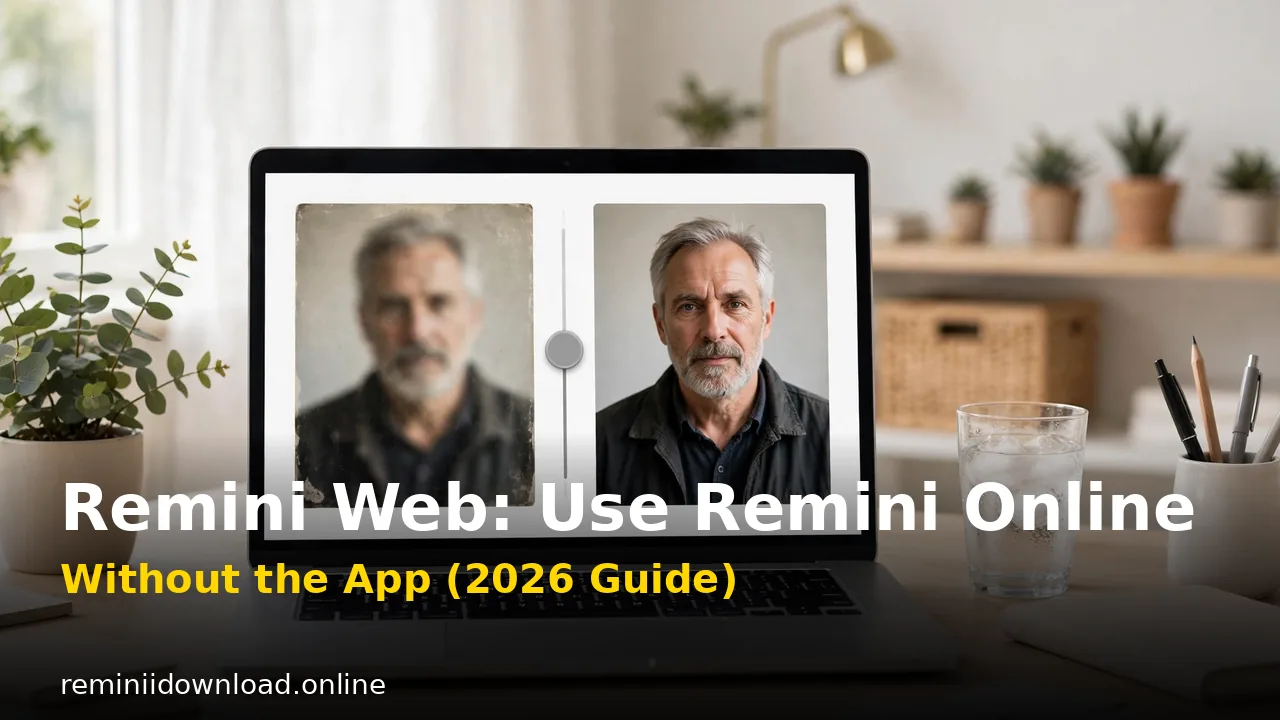
Remini Web: How to Use Remini Online Without the App (2026 Guide)

Remini Web is the browser-based version of the popular AI photo enhancer, available at app.remini.ai. Instead of downloading the mobile app from the Play Store or App Store, you open Remini Web in any modern browser — Chrome, Safari, Edge, or Firefox — sign in, upload a photo, and let the AI enhance it right there on the page.
If you have ever wanted to fix a blurry photo on a work computer, a school laptop, or a phone with no free storage, Remini Web is the answer. There is nothing to install, nothing to update, and it works on Windows, Mac, Linux, Chromebooks, and even tablets. All the heavy AI processing happens on Remini’s cloud servers, so your device stays fast.
This guide walks you through everything: how to open Remini Web, the exact steps to enhance your first photo, what the web version can and cannot do compared to the mobile app, whether it is free, and how to get the best possible results.
Table of Contents
What Is Remini Web?
Remini Web is the browser-based version of the popular AI photo enhancer, available at app.remini.ai. Instead of downloading the mobile app from the Play Store or App Store, you open Remini Web in any modern browser — Chrome, Safari, Edge, or Firefox — sign in, upload a photo, and let the AI enhance it right there on the page.
If you have ever wanted to fix a blurry photo on a work computer, a school laptop, or a phone with no free storage, Remini Web is the answer. There is nothing to install, nothing to update, and it works on Windows, Mac, Linux, Chromebooks, and even tablets. All the heavy AI processing happens on Remini’s cloud servers, so your device stays fast.
This guide walks you through everything: how to open Remini Web, the exact steps to enhance your first photo, what the web version can and cannot do compared to the mobile app, whether it is free, and how to get the best possible results.
Remini Web vs. the Mobile App
Remini Web uses the same AI engine as the mobile app, so enhancement quality is identical. The difference is the experience around it. Here is how the two compare:
- Installation: Remini Web needs none — it runs in your browser. The mobile app is a 100MB+ download from the Play Store or App Store.
- Devices: Remini Web works on Windows, Mac, Linux, Chromebooks, and tablets. The app is limited to Android and iOS phones.
- Screen space: Comparing before and after on a 15-inch laptop screen beats squinting at a phone display.
- File access: On a computer, your photos are usually already there — drag and drop beats transferring files to your phone first.
- Features: The mobile app has a few extra tools like AI avatars and some portrait modes that have not made it to the web version yet.
- Speed: Processing happens in the cloud either way, so results arrive at the same speed on both.
Bottom line: if you are already at a computer, Remini Web is the faster, more comfortable option. If you are out and about with only your phone, the app wins.
Who Should Use Remini Web?
Remini Web is ideal for:
- Desktop users who keep their photos on a computer and do not want to shuffle files to a phone.
- Chromebook and Linux users who cannot install the mobile app at all.
- Office and school computers where installing apps is blocked by policy.
- Anyone short on phone storage — the web version uses zero space on your device.
- Batch work — enhancing several photos is more comfortable with a big screen, keyboard, and proper file folders.
If that sounds like you, here is exactly how to get started.
How to Use Remini Web: Step-by-Step
Follow these steps to enhance your first photo in under two minutes.
Step 1: Open Remini Web
Open your browser and go to app.remini.ai. That is the official Remini web app — be careful with lookalike sites, and if in doubt, search “Remini Web” in Google and pick the official remini.ai result. The page loads a clean workspace with an upload area front and center.
Step 2: Sign In or Create an Account
Click Sign In and log in with Google, Apple, or Facebook — or create a free account with your email. You need an account before you can enhance anything; it is what tracks your free credits. New accounts usually come with a few free enhancements so you can try the quality before paying anything. If you are curious about the trial terms, see our guide to the Remini free trial.
Step 3: Upload Your Photo
Drag and drop an image into the upload area, or click Upload to browse your files. JPG and PNG both work. For the sharpest results, upload the highest-resolution original you have — the AI has more detail to work with, and the before/after difference is far more dramatic than with a tiny compressed copy. Enhancement typically takes 10–30 seconds depending on the photo.
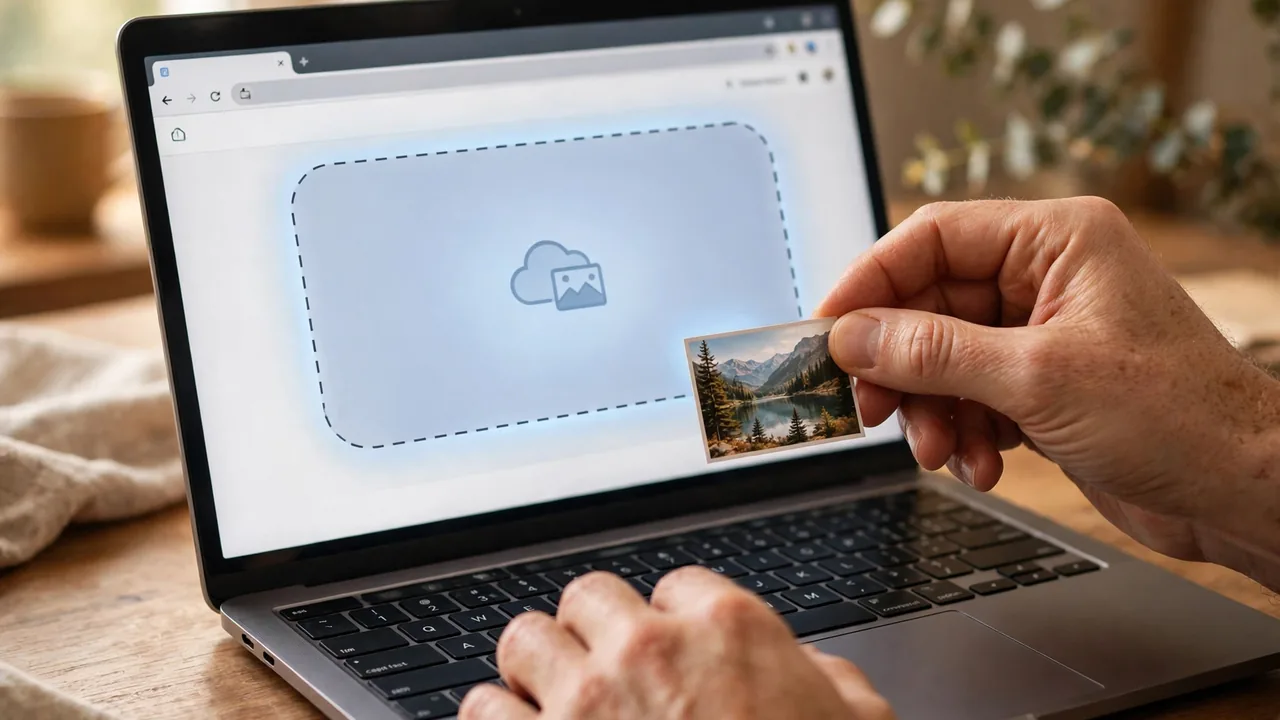
Step 4: Choose an Enhancement Mode
After uploading, Remini Web offers its enhancement options — typically a general photo enhancer plus modes tuned for faces, old photos, or low-light shots. Pick the one that matches your image. For a standard blurry portrait, the default enhancer is the right choice; for scanned vintage prints, look for the restoration-style option. If you want the full walkthrough of what each mode does, our Remini app guide covers the same tools in detail.
Step 5: Preview and Compare
Once processing finishes, you will see the enhanced result next to the original. Drag the comparison slider back and forth and zoom in to 100% on key details like eyes, hair, and text. If the result looks over-smoothed or an artifact slipped in, re-run the enhancement — sometimes a second pass with a different mode gives a cleaner outcome.

Step 6: Download Your Enhanced Photo
Happy with the result? Click Download to save the enhanced image to your computer. On the free tier the download may include a small Remini watermark in the corner — our guide on how to remove the Remini watermark explains your options. Paid subscribers get clean, full-resolution downloads.
Is Remini Web Free?
Remini Web follows the same freemium model as the app. A free account includes a small number of complimentary enhancements — enough to test the quality on your own photos. After that, you will need a subscription or credit pack for unlimited use. Free downloads may carry a small watermark; paid plans remove it and unlock full-resolution output. For a full breakdown of tiers and pricing, read our Remini subscription plans guide.
Limitations of Remini Web
Remini Web is excellent, but it is not a complete replacement for the app:
- Fewer creative tools: AI avatars, portrait beautification modes, and some newer features launch on mobile first.
- Needs a steady connection: Everything uploads to the cloud, so a slow connection means slow results.
- No offline mode: The mobile app can queue some tasks; the web version cannot work offline at all.
- Video limits: Basic video enhancement is available — see how to enhance videos with Remini — but long or 4K clips are easier to manage in the app.
Pro Tips for Best Results
- Start with the best source file. The original camera file beats a WhatsApp-forwarded copy every time.
- Match the mode to the photo. Face photos get face mode; scanned prints get restoration mode.
- Do not over-enhance. Running the same photo through three times can create a waxy, artificial look — one or two passes is the sweet spot.
- Check at 100% zoom. Thumbnails hide artifacts; zoom in before you download.
- Keep your browser updated. An up-to-date Chrome or Edge handles the upload workspace most reliably.
Troubleshooting Common Remini Web Issues
- Upload stuck or failing: Check your connection, try a smaller file, and disable VPNs or aggressive ad-blockers for app.remini.ai — they sometimes interfere with the uploader. Our Remini not working guide has more fixes.
- Enhancement takes forever: Large photos and peak-hour traffic slow things down. Wait a minute or two; if the progress bar truly freezes, refresh and re-upload.
- Result looks worse than the original: You may have picked the wrong mode. Re-run with the general enhancer, and make sure your source file is not extremely low resolution.
- Login problems: Clear cookies for remini.ai, or try an incognito window. If Google sign-in loops, use email sign-in instead.
- Download button does nothing: Pop-up blockers can swallow the download — allow pop-ups for the site and try again.
Remini Web vs. Desktop Software
Wondering whether to use Remini Web or install something on your PC? For most people, the web version is enough — but if you enhance photos daily or work with very large files, a dedicated setup may suit you better. See our full comparison in Remini for PC.
Frequently Asked Questions
Is Remini Web free to use?
Yes, Remini Web offers a free tier with a limited number of complimentary enhancements. For unlimited use and watermark-free downloads, you will need a paid plan — see our subscription plans guide for details.
What is the official Remini Web URL?
The official web app is at app.remini.ai. Avoid lookalike domains that copy Remini’s branding.
Do I need to install anything to use Remini Web?
No. Remini Web runs entirely in your browser on Windows, Mac, Linux, and Chromebooks — nothing to download or update.
Is Remini Web safe?
Yes — the official app.remini.ai is operated by Remini itself. Read our full breakdown in Is Remini Safe?
Can I enhance videos on Remini Web?
Basic video enhancement is supported — see our guide on enhancing videos with Remini. For long or 4K clips, the mobile app handles the job more smoothly.
Why is Remini Web not working?
Most issues come from a weak connection, an aggressive ad-blocker, or a stuck upload. Try an incognito window and our Remini not working troubleshooting guide.
Does Remini Web add a watermark?
Free-tier downloads may include a small watermark. Our guide explains how to remove the Remini watermark.
Can I use Remini Web on a Chromebook?
Yes — Chromebooks are one of the best use cases for Remini Web, since you cannot install the Android app on many school or work Chromebooks anyway.
Final Thoughts
Remini Web brings the full power of Remini’s AI enhancement to any device with a browser. No installs, no storage worries, no app-store restrictions — just open app.remini.ai, upload a photo, and watch years of blur and noise melt away.
Start with your free credits, follow the steps above, and keep the pro tips in mind — especially uploading the highest-resolution original you can find. For most everyday photo fixes, the web version is all you will ever need.
Found this guide helpful? Check our Remini troubleshooting guide if you ever run into issues, and browse our other tutorials for more ways to get the most out of Remini — all researched and tested by our team before publishing.
