
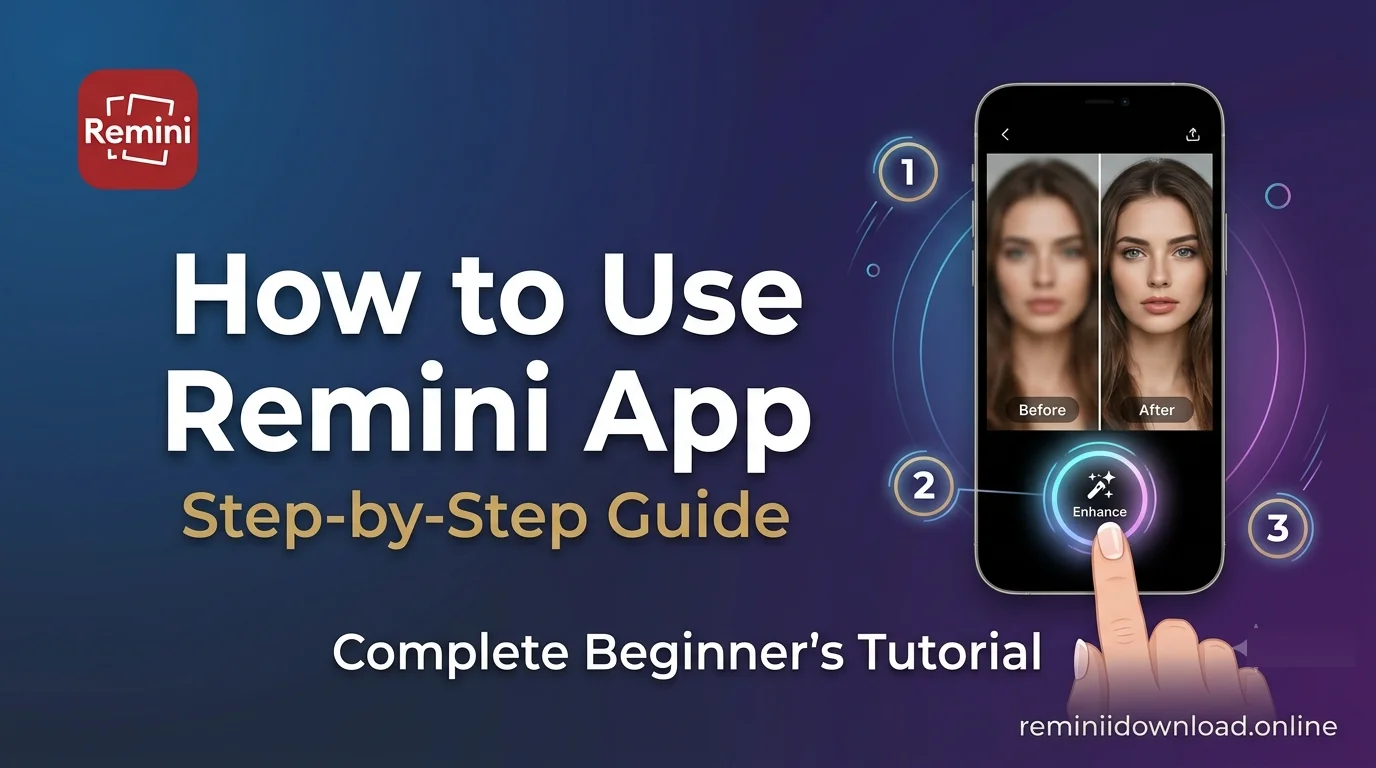
How to Use Remini App – Complete Step-by-Step Guide for Beginners

To learn how to use Remini app, install it from the Google Play Store or Apple App Store, open it, grant photo access, tap Enhance, pick a photo from your gallery, and let the AI process it — then preview the result and save it to your device. The whole process takes under a minute, and this guide walks you through every step in detail, from installation to the advanced features most beginners never discover.
Whether you want to restore a decades-old family photo, sharpen a blurry selfie, or upscale a low-resolution screenshot, Remini’s AI photo enhancer handles it in seconds. Below you’ll find the complete workflow, pro tips for better results, and answers to the most common questions.
Last updated: October 2026 — all steps verified on the latest Remini release.
Table of Contents
What Is the Remini App?
Remini is an AI-powered photo and video enhancer developed by Bending Spoons, an Italian software company. Since its launch, it has crossed 500 million downloads on Android alone, making it one of the most popular AI photo enhancer apps in the world.
Unlike traditional editors that rely on manual sliders, Remini uses generative AI models trained on millions of images. The app analyzes every pixel of your photo, reconstructs missing detail, sharpens faces, corrects color, and removes noise — automatically. You don’t need any editing skills; the AI does the heavy lifting.
The free version includes a limited number of AI enhancements per day with ads, while the premium subscription unlocks unlimited processing, video enhancement, and priority speed. If you’re exploring modified builds, our Remini Mod APK ultimate guide explains how those versions differ from the official release.
Downloading and Installing Remini
Before anything else, get the official app from a trusted source. Here’s how on each platform.
On Android
- Open the Google Play Store on your phone.
- Search for “Remini – AI Photo Enhancer” and confirm the developer is Bending Spoons.
- Tap Install and wait for the download to finish (the app is roughly 150–250 MB depending on your device).
- Once installed, tap Open — or find the Remini icon in your app drawer.
APK note: If the Play Store isn’t available in your region, some users sideload the APK from third-party sites. Be careful — unofficial APK files can be tampered with. Always scan downloads and prefer the official store listing, which you can find linked from Remini’s official Google Play page.
On iPhone (iOS)
- Open the App Store on your iPhone or iPad.
- Search for “Remini – AI Photo Enhancer”.
- Tap Get, authenticate with Face ID / Touch ID, and wait for the install.
- Launch the app from your home screen.
Getting Started: Your First Enhancement in 5 Steps
The core workflow is the same on Android and iOS. Here’s exactly what to do:
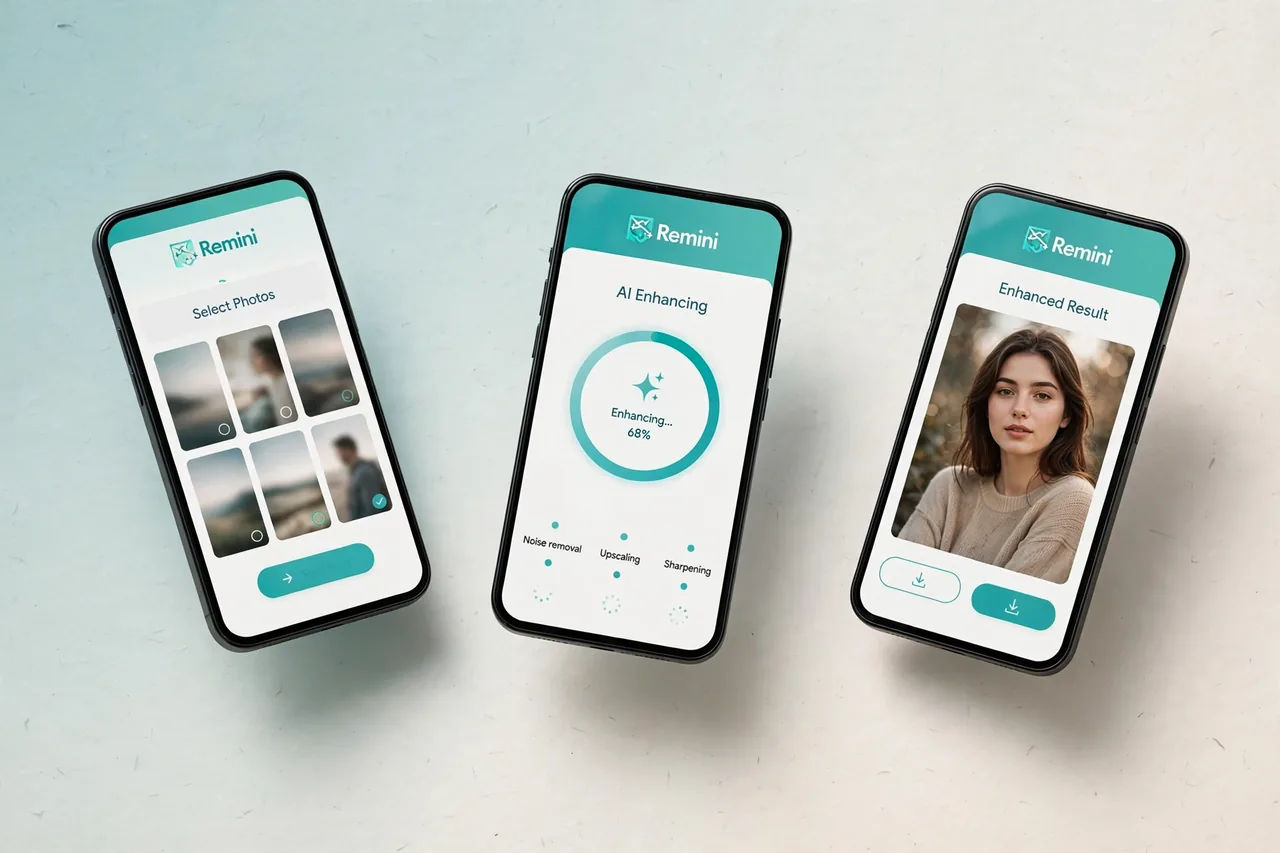
Step 1 — Open the App and Grant Permissions
On first launch, Remini asks for access to your photos and media. Grant it — without gallery access the app can’t load pictures to enhance. You’ll also see a brief onboarding tour and the subscription screen; you can close it with the ✕ button to continue on the free plan.

Step 2 — Choose Your Media
From the home screen, tap Enhance (or the + button). Your gallery opens — select the photo you want to improve. For best results, pick the original file rather than a screenshot of a photo, since screenshots carry extra compression artifacts the AI has to fight through.
Step 3 — Pick an Enhancement Type
Remini offers several AI tools. For a standard photo, choose Enhance. Other options include Retouch (face-focused smoothing), Unblur & Sharpener, Denoiser, and Old Photos (for vintage restoration). Tap the one that matches your image.
Step 4 — Let the AI Process
Tap the enhance button and wait. Processing usually takes 10–60 seconds depending on image size and server load. Important: Remini needs an active internet connection — the AI runs on cloud servers, not on your phone, so offline enhancement isn’t possible.
Step 5 — Preview, Compare, and Save
When processing finishes, you’ll see the enhanced result. Drag the before/after slider to compare with the original. Happy with it? Tap the download/save icon to store the HD version in your gallery. You can also share it directly to WhatsApp, Instagram, or any other app.
Exploring the Advanced Features
Once you’ve mastered the basics, these pro-level tools take your results further.
AI Filters and Effects
Beyond enhancement, Remini ships with a library of AI filters — oil painting, sketch, manga, and stylized portrait effects. These work like the Enhance tool: upload a photo, pick a filter, and the AI re-renders your image in the chosen style. Great for profile pictures and creative posts.
Batch Processing
Enhancing photos one by one gets tedious. Premium users can queue multiple photos and enhance them in a single batch run — ideal for restoring an entire album of old family pictures or preparing a set of product photos.
Video Enhancer
Remini isn’t photo-only. The Video Enhancer upscales low-resolution clips, stabilizes shaky footage, and sharpens blurry frames. Processing a video takes longer than a photo (a few minutes for short clips), and this feature requires a premium subscription on the official app.
Old Photo Restoration
This is Remini’s most loved feature. The Old Photos tool is specifically trained on aged, faded, scratched, and damaged prints. It reconstructs faces, removes creases and spots, and can even colorize black-and-white images. If you’re digitizing family archives, scan prints at 300 DPI or higher first — the AI works best with clean scans.
Pro Tips for Better Results
The AI is powerful, but your input quality still matters. These tips come from testing hundreds of enhancements:
Image Quality Tips
- Start with the highest-resolution original you have. The AI can add detail, but it can’t invent what was never captured.
- Avoid screenshots of photos. Re-photographing a screen adds moiré patterns and glare.
- Faces should be clearly visible. Heavy shadows, sunglasses, or extreme angles reduce facial reconstruction quality.
- Don’t over-enhance. Running Enhance twice on the same image can create an artificial, waxy look. One pass is usually ideal.
Processing Tips
- Use Wi-Fi for uploads — enhanced HD files are large and mobile data adds up fast.
- Process during off-peak hours if the queue is slow; server load affects wait times.
- Try different tools on the same photo. A blurry portrait might respond better to Unblur & Sharpener than to the generic Enhance.
- Save the original too. Keep an untouched copy before enhancing, in case you want to reprocess later.
Mistakes to Avoid
- Enhancing already-sharp photos — the AI can introduce artifacts into clean images.
- Expecting miracles from thumbnails — a 100-pixel image won’t become a poster, no matter the AI.
- Ignoring the free daily limit — plan your enhancements instead of wasting them on test shots.
- If the app throws errors mid-process, don’t panic — fix the Remini “Oops” error with our troubleshooting guide.
Real-World Examples: Before and After
Here’s what Remini actually delivers on common photo problems:
- Blurry selfie: Facial features sharpen dramatically; background noise drops. Skin texture looks natural, not plastic, on a single pass.
- 30-year-old family print: Scratches and fading removed, faces reconstructed, colors revived. The Old Photos tool outperforms generic enhancement here.
- Low-light indoor shot: Noise reduced, exposure balanced, details recovered in shadows.
- Pixelated WhatsApp-forward image: Noticeable improvement, though heavily compressed images retain some softness — garbage in, slightly-less-garbage out.
Being honest about limits is part of using the tool well: Remini is exceptional at faces and moderate damage, but it can’t recover detail that was never in the file.
Remini vs Other Photo Enhancers
How does Remini stack up against the competition? A quick comparison:
| App | AI Enhancement Quality | Old Photo Restoration | Video Enhancement | Free Tier |
|---|---|---|---|---|
| Remini | Excellent | Best-in-class | Yes (premium) | Limited daily |
| Picsart | Good | Basic | No | Freemium |
| Fotor | Good | Basic | No | Freemium |
| Snapseed | Manual only | No | No | Fully free |
Remini leads on pure AI enhancement quality and vintage restoration. If you need manual control or a fully free editor, alternatives make sense — see our full breakdown of the best Remini alternatives.
Frequently Asked Questions
Is the Remini app free to use?
Yes, Remini offers a free tier with a limited number of AI enhancements per day, supported by ads. Unlimited enhancements, video tools, and faster processing require a premium subscription.
Does Remini work without the internet?
No. Remini’s AI processing happens on cloud servers, so an active internet connection is required for every enhancement. The app cannot enhance photos offline.
How long does Remini take to enhance a photo?
Most photos finish in 10–60 seconds. Larger images, video enhancement, and peak server hours can extend the wait to a few minutes.
Can Remini restore very old or damaged photos?
Yes — the dedicated Old Photos tool is trained specifically for aged, faded, scratched, and torn prints, and can even colorize black-and-white images. Scan prints at 300 DPI or higher for the best results.
Why does Remini show an “Oops” error?
The “Oops, something went wrong” error usually comes from server overload, a weak connection, or an outdated app version. Updating the app and retrying on stable Wi-Fi fixes it in most cases.
Is it safe to download Remini from third-party APK sites?
It’s risky. Unofficial APKs can be modified to include malware. The safest option is always the official Google Play Store or Apple App Store listing published by Bending Spoons.
Does Remini enhance videos too?
Yes, the Video Enhancer upscales resolution, sharpens frames, and stabilizes footage. It’s a premium feature on the official app and takes several minutes per clip.
Final Thoughts
Learning how to use Remini app takes minutes: install it, pick a photo, tap Enhance, and save the result. The real skill is knowing which tool to use and when — match the enhancement type to your image, feed the AI the best original you have, and don’t over-process.
One last honest note: this site is an independent guide and is not affiliated with Bending Spoons, the developer of Remini. For the official app, always use the Play Store or App Store listings — and check our disclaimer for the full picture.
By Rahul Sharma, Tech Enthusiast & Digital Creator — Founder of ReminiDownload.online
Rahul Sharma is a tech enthusiast and digital creator from India who writes hands-on guides for mobile apps and AI tools. This guide was tested on the latest official Remini release. ReminiDownload.online is an independent publication and is not affiliated with, endorsed by, or connected to Bending Spoons, the developer of Remini.
