
Remini vs Cutout Pro: Which AI Photo Tool Wins? (2026)

Remini vs Cutout Pro has a short answer: choose Remini when the photo is a person — old, blurry, faded, or low-resolution — and choose Cutout Pro when the photo is a product that needs its background removed and its listing cleaned up. They overlap on paper, but they were built for different work, and this comparison is organized by the job you actually have.
Last updated: November 27, 2026
The Scorecard: Seven Rounds, Two Specialists
| Round | Remini | Cutout Pro | Winner |
|---|---|---|---|
| Face enhancement & unblur | Rebuilds facial detail, eyes, skin texture | General sharpening and upscaling | Remini |
| Old photo restoration | Dedicated restore + colorize | Enhancer + colorizer, less face-focused | Remini |
| Background removal | No headline remover tool | Core product, 1 credit per image | Cutout Pro |
| AI-generated photos | Headshots, wedding, baby, yearbook from selfies | AI portraits, narrower and work-oriented | Remini |
| Video | Photo + video enhancement | Video background removal + enhancement | Tie — by need |
| Batch, API & e-commerce | Personal app, photo by photo | Batch tools, API, product workflows | Cutout Pro |
| Pricing shape | Subscription (weekly/monthly/yearly) | Credits — pay per image | By volume (see math below) |
Read the table as a map. Remini wins everything about fixing people. Cutout Pro wins everything about preparing things for sale. The sections below show where those scores come from.
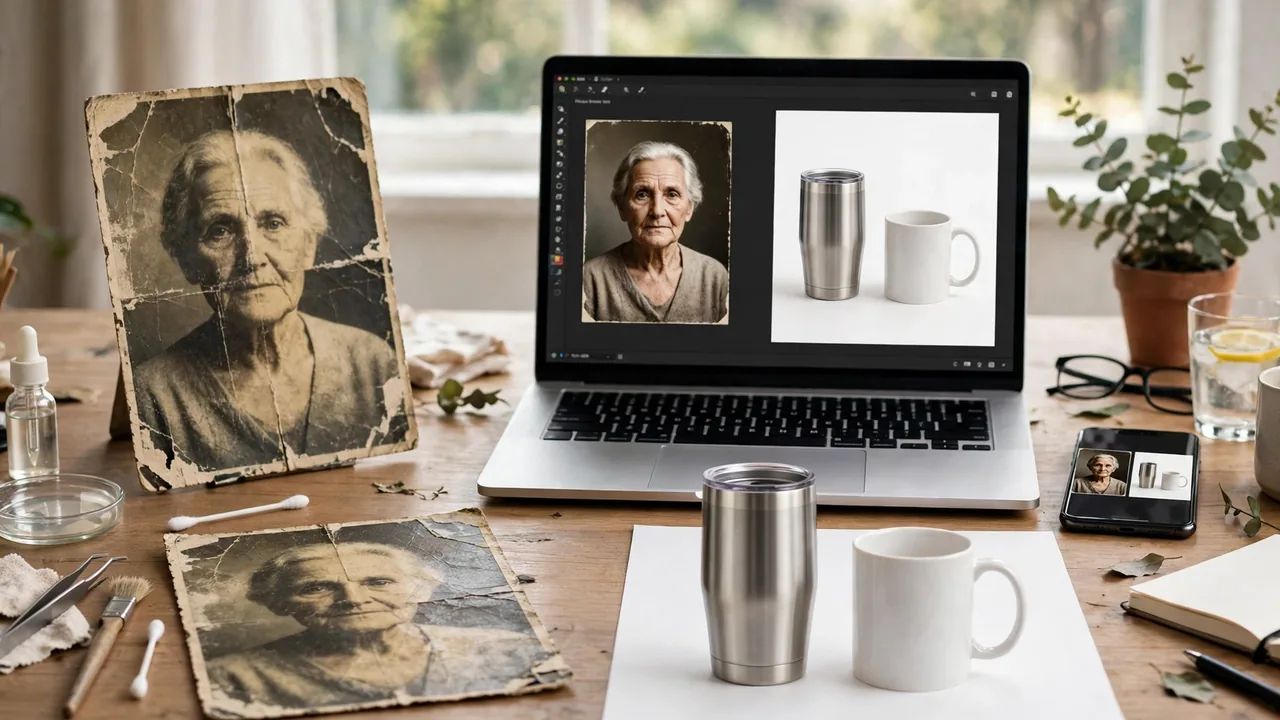
Job One: Fixing People — Where Remini Wins
Take the most common hard job first: a faded family print, a blurry selfie, or a low-resolution portrait from an old phone. This is the work Remini was built for. Its Enhance, Unblur and Sharpener, denoise, and old-photo restoration tools treat the image as a reconstruction job — eyes, hair, and skin texture are rebuilt, blur and noise drop away, and color and light come back in one tap. Our old-photo restoration guide walks through that process in full, and the unblur guide covers the portrait workflow step by step.
Cutout Pro can sharpen and upscale the same photo, and for a general image that may be enough. But its enhancer is not face-specialized: on a genuinely damaged portrait it improves the photo rather than restoring the person. The honest limit on Remini’s side is the mirror image of its strength — it reconstructs detail rather than recovering it, so a very blurry face can come back slightly different from the original person. Keep your originals, and check important restorations closely before printing.

Round verdict: If the subject is a face and the photo is damaged, Remini is the stronger tool by a clear margin.
Job Two: Preparing Products — Where Cutout Pro Wins
Now take the seller’s job: a sneaker, a bottle, or a handmade item photographed on a messy desk, needed on a clean white or transparent background for a listing. This is Cutout Pro’s home ground. Upload the photo and its background remover cuts out the subject in seconds — hair edges, product edges, and busy backgrounds handled well for a one-click tool — with face cutout, background blur, object removal, passport photos, and e-commerce tools around that core. Batch processing and API access make it a team tool, not just a single-photo fix.
Remini has no real answer here. It will make the product itself sharper, but it does not offer a headline background remover, and it works photo by photo. For one keepsake that is fine; for two hundred listings it is the wrong tool.
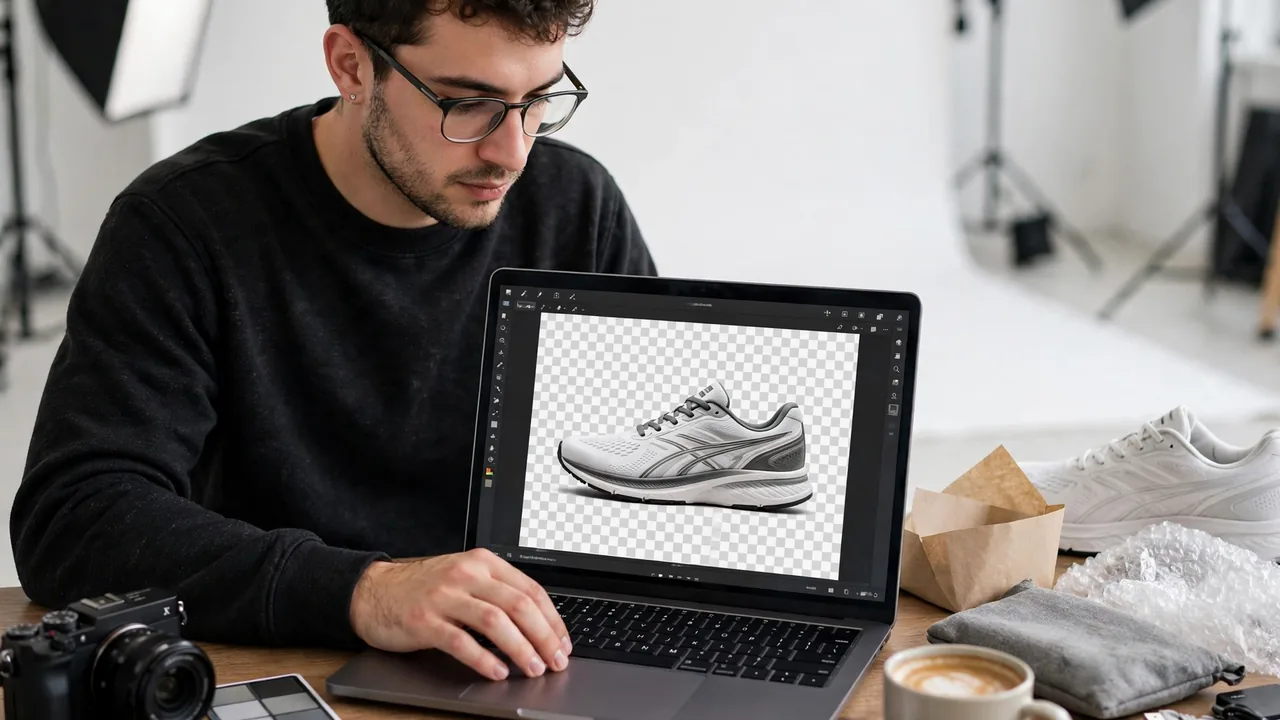
Round verdict: If the subject is a product and the background is the problem, Cutout Pro wins without much contest.
Features Compared in Detail
Enhancement and restoration. Remini: Enhance, Unblur and Sharpener, denoise, color fix, old-photo restoration, colorize, video enhancement. Cutout Pro: photo enhancer, upscaler, colorizer, retouch, object removal, photo animation. Remini for portraits and memories; Cutout Pro for a broader task list.
Background removal. Remini’s strength is the subject itself, not what surrounds it. Cutout Pro’s remover is its core product, with e-commerce workflows built around it. Cutout Pro, clearly.
AI-generated photos. Remini’s AI Photos generates headshots, avatars, wedding, pregnancy, baby, and yearbook images from 8–12 selfies. Cutout Pro offers AI portraits and headshots, but its generative catalog is narrower and more work-oriented. Remini for personal AI photos.
Video. Both enhance video, differently. Remini enhances photo and video quality for creators and families. Cutout Pro removes video backgrounds and enhances video, with video credits priced by duration — which can get expensive on long clips. Choose by whether you need background removal or general enhancement.
Batch and business tools. Cutout Pro offers batch editing, API access, and product-imagery workflows. Remini is a personal app that creators also use professionally for portraits. Cutout Pro for teams and sellers.

Ease of Use: One Tap vs One Dashboard
Remini is the simpler app: open it, upload, tap Enhance, save. The mobile app is polished and the steps are obvious. The trade-off is control — you accept what the AI produces, with limited fine-tuning.
Cutout Pro is simple for its main job — upload, auto-cutout, download — but the full suite has more menus, credit choices, and export options. That is good for sellers who need control, and slightly more to learn for a casual user who wants one clean photo. If you want one-tap simplicity, Remini feels easier. If you want a web dashboard for work, Cutout Pro feels more capable.
The Pricing Math: Subscription vs Credits
The two pricing shapes suit different volumes, so run your own numbers before choosing.
Remini uses a subscription model with weekly, monthly, and yearly-style plans, plus a free trial route covered in our free trial guide. Subscriptions suit regular users: enhance photos every week and a subscription usually beats paying per photo. Used in bursts — subscribe, restore the family archive, cancel — it also works well; our cancel guide shows how to stop renewal cleanly.
Cutout Pro uses credits. Registration gives a small free allowance (reported as 5 credits in recent 2026 reviews, with more through invites). Monthly plans start around $5 per month for 80 credits, rising through 170, 300, 550, 1,000, and 1,450 credits, with unused credits rolling over up to a cap. Pay-as-you-go packs start around $4.99 for 30 credits and never expire. The credit costs are the part to watch: background removal costs 1 credit per image, while enhancement, colorization, passport photos, and cartoon selfies cost 2 credits each. So an 80-credit month is 80 background removals — or only 40 enhancements. A seller removing backgrounds gets full value; a portrait-heavy user burns credits twice as fast.
Round verdict: Occasional background removals — Cutout Pro’s credits are cheaper. Frequent portrait enhancement — Remini’s subscription is usually better value. Heavy daily work — compare your monthly image count against the credit tiers before committing. Prices change often; verify the live price on the official Cutout Pro site and Remini’s official site before paying.
Privacy and Safety: Read This Before Uploading
Both tools process photos in the cloud, which means your images leave your device. That is normal for AI enhancement, but it matters for private photos. Remini’s position is covered in detail in our Is Remini Safe review: use the official app, avoid uploading identity documents or highly sensitive images, and check what the app stores and for how long.
The same caution applies to Cutout Pro, and more so: in February 2024, a data breach involving Cutout Pro was reported, with a database dump reportedly affecting around 20 million accounts, including emails and other account details, according to breach-tracking coverage. That does not mean the current service is unsafe, but it is a real reason to use a unique password, enable any available account protections, and avoid uploading private, sensitive, or business-critical photos you would not want exposed. For both tools, the safest habit is simple: enhance copies, not originals; delete uploads you no longer need; and think twice before sending photos of children, IDs, or confidential work to any cloud editor.
The Decision Guide: Match the Tool to the Photo
- Old, faded, or damaged family photos: Remini. Nothing in this comparison restores faces like it.
- Blurry selfies and portraits: Remini for rescue jobs; either tool for a mild sharpen.
- Product photos for listings: Cutout Pro, for background removal, batch work, and consistent clean backgrounds.
- Social posts and ads from product shots: Cutout Pro, then design on top of the cutout.
- AI headshots, wedding, baby, or yearbook styles: Remini’s AI Photos is the more developed catalog.
- Old or low-quality video of people: Remini. Video that needs its background removed: Cutout Pro.
- The tightest budget for occasional jobs: Cutout Pro’s free credits or smallest pack; Remini’s free trial for a one-off restoration burst.

Plenty of people end up using both in sequence: restore the portrait in Remini, then place it on a clean background in Cutout Pro — or cut out the product in Cutout Pro, then sharpen the subject in Remini. That two-tool workflow costs more than either alone, so reserve it for photos that earn it.
Frequently Asked Questions
Which is better overall, Remini or Cutout Pro?
Neither wins overall, because they do different jobs. Remini is better at fixing people — face enhancement, unblur, and old-photo restoration. Cutout Pro is better at preparing products — background removal, batch cutouts, and e-commerce workflows.
Can Cutout Pro restore old photos as well as Remini?
No. Cutout Pro can sharpen, upscale, and colorize an old photo, but its enhancer is not face-specialized. For faded, scratched, or heavily blurred portraits, Remini rebuilds facial detail more convincingly.
Can Remini remove backgrounds from product photos?
Remini does not offer a dedicated background remover as a headline feature. For clean white or transparent product backgrounds — especially in bulk — Cutout Pro is the right tool.
Which is cheaper, Remini or Cutout Pro?
It depends on volume. Cutout Pro starts around $5 per month for 80 credits (1 credit per background removal, 2 per enhancement), which suits occasional jobs. Remini’s subscription suits frequent portrait enhancement. Count your monthly images before choosing.
Is Cutout Pro safe to use after its reported data breach?
A February 2024 breach involving Cutout Pro was reported, reportedly affecting around 20 million accounts. That does not make the current service unsafe, but use a unique password, enable account protections, and avoid uploading sensitive photos to any cloud editor.
Does Remini work on videos too?
Yes. Remini applies its enhancement AI to video clips as well as still photos, which helps old phone footage. Cutout Pro also works on video, but its strength is removing video backgrounds rather than general enhancement.
Can Remini change a person’s face or make a photo worse?
It can change it. Because Remini reconstructs detail rather than recovering it, very blurry faces can come back over-smoothed or slightly different from the original person. Keep your originals and check important restorations carefully.
Should I use Remini and Cutout Pro together?
For important photos, yes — that is the strongest workflow here. Restore or enhance the subject in Remini first, then use Cutout Pro to place it on a clean background for a print, listing, or social post.
Conclusion
Remini vs Cutout Pro resolves the moment you name the job. If the photo is a person and the problem is blur, age, or damage, Remini is the better tool by a distance its rival does not seriously contest. If the photo is a product and the problem is the background, the listing, or the volume, Cutout Pro wins just as clearly. Test both on your own hardest photo and your own busiest listing, start with the free starting points, and pay only for the tool that fixes the problem you actually have.
Written by Rahul Sharma
