
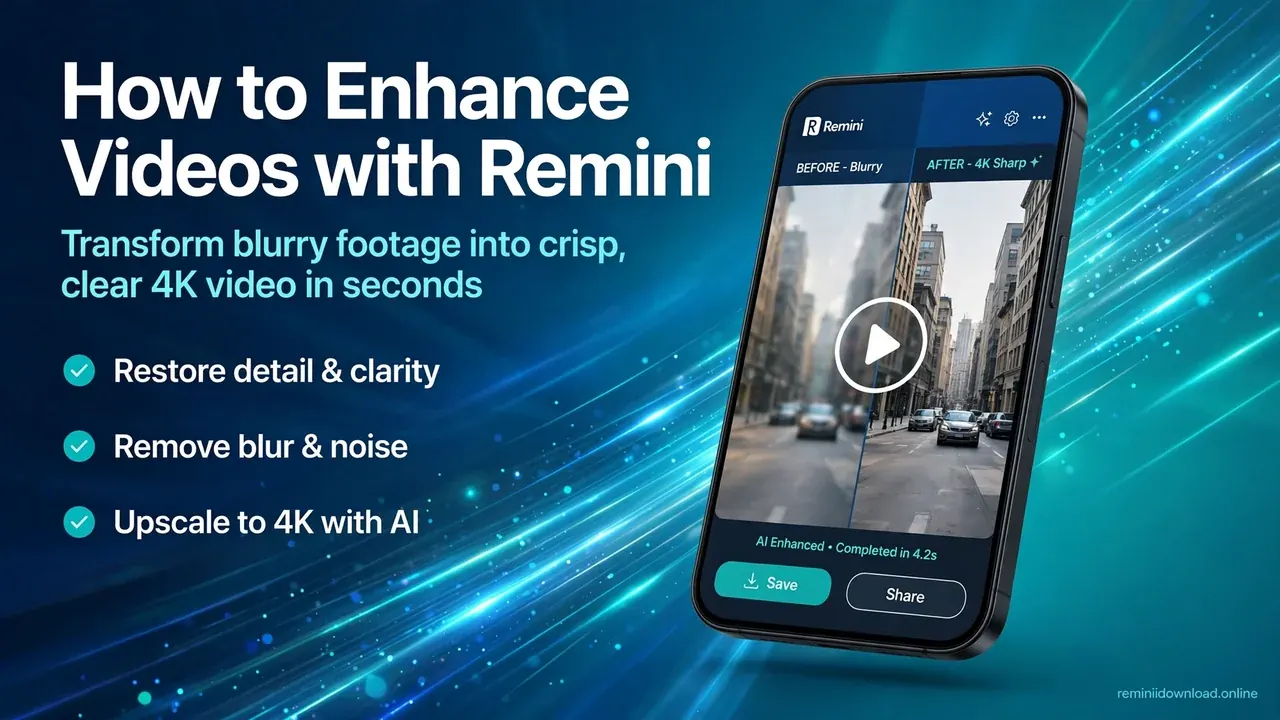
How to Enhance Videos with Remini: Complete Guide (2026)

To enhance videos with Remini, open the app, tap the Videos option, choose a clip from your gallery, and hit Enhance — the AI upscales each frame on Remini’s servers and returns a sharper, cleaner video in a few minutes. This complete guide on how to enhance videos with Remini walks you through the exact steps on both the mobile app and the web version, plus the best settings, file limits, and fixes for the errors that most often stop video enhancement from working.
Photo enhancement made Remini famous, but its video tools are what most people discover second — and video behaves differently. Clips are heavier, processing takes longer, and the free tier is stricter. Whether you are polishing a blurry birthday clip or upscaling old family footage, here is everything you need to know about how to enhance videos with Remini. If you are new to the app overall, start with our step-by-step Remini tutorial first.
Table of Contents
How to Enhance Videos with Remini on Mobile (App)
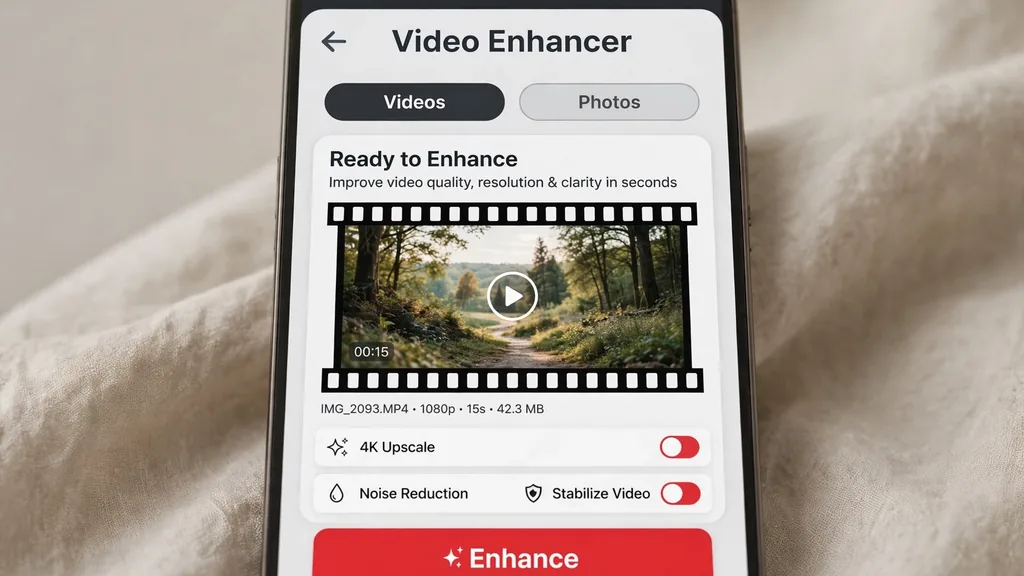
The mobile app is the fastest way to enhance short clips. Follow these steps exactly to learn how to enhance videos with Remini on your phone:
- Install and open Remini. Get the official app from the Google Play Store (Android) or App Store (iOS), then sign in or create a free account.
- Tap the “Videos” button. On the home screen you will see Photos and Videos options — choose Videos.
- Pick your clip. Select a video from your gallery. Keep it under roughly 60 MB and reasonably short; the app handles short reels and clips best.
- Tap “Enhance.” The upload starts immediately. You will see a progress indicator — do not close the app or switch networks mid-upload.
- Wait for server processing. The AI analyzes and rebuilds each frame on Remini’s servers. A 15-second clip usually takes 2–5 minutes depending on server load.
- Preview the result. Use the before/after comparison slider to check the improvement frame by frame.
- Save or share. Download the enhanced video to your gallery or share it directly to social apps.
How to Enhance Videos with Remini on the Web (Online)
No phone storage to spare? The web version works from any desktop browser:
- Open the official Remini website in your browser and sign in.
- Find the video enhancer tool in the web interface and click “Choose File” or “Upload.”
- Upload your video from your computer (MP4 or MOV work best).
- Select your enhancement options from the AI toolbar and click “Apply.”
- Wait for processing — times vary with video length and current service load.
- Preview, then download the enhanced file from the top-right download button.
The web tool suits longer videos and desktop workflows; the app suits quick edits on the go. Both use the same cloud AI, so quality is identical.
Supported Formats and File Limits

Knowing the limits before you start saves failed uploads:
- Formats: MP4 and MOV are fully supported; JPG/PNG/TIFF apply to photos.
- File size: keep clips around 60 MB or smaller — larger files often fail or stall.
- Length: short clips (under a minute) process most reliably; long videos may time out on the free tier.
- Internet: a stable Wi-Fi connection is essential — uploads resume poorly on shaky mobile data.
- Free tier: video enhancements are limited per day; premium accounts get more quota.
If your clip exceeds the limits, trim it in your phone’s editor first, then enhance the trimmed version.
Best Settings and Tips for the Best Results
Keep these tips in mind when you learn how to enhance videos with Remini:
- Start with the best source you have. AI upscaling works best on medium-quality footage; extremely compressed or pixelated files produce artifacts.
- Stabilize first. Remini sharpens frames — it does not fix shaky camera work. Run heavy shake through a stabilizer app before enhancing.
- Good lighting in, good results out. Dark, noisy footage improves less than well-lit clips.
- Enhance before editing. Upscale the raw clip first, then add music, cuts, and captions in your editor — not the other way around.
- Check faces frame by frame. The AI occasionally misreads a fast-moving face; scrub through the preview before saving.
- One enhancement pass is enough. Re-enhancing an already-enhanced video rarely helps and can add a waxy, artificial look.
Common Video Enhancement Problems and Fixes
Upload stuck or failing: check file size (trim under 60 MB), switch to Wi-Fi, and restart the app. If it persists, our Remini “Oops” error fix guide covers the underlying glitches.
“Enhancement failed” after processing: usually server-side — quota exhausted or temporary overload. Wait 30 minutes and retry; persistent failures mean your daily quota is spent.
Result looks waxy or artificial: the source was too low-quality for the AI to reconstruct cleanly. Try a higher-quality original or accept a lighter enhancement.
Video has no sound after enhancing: re-export with the original audio track in your phone’s editor; some builds drop audio on certain codecs — converting to MP4 (H.264) first prevents this.
Watermark on the output: free-tier exports are stamped. Premium removes it — see what else unlocks in our Remini premium unlocked features guide.
Honest Limits of Remini Video Enhancement
Set expectations correctly. Remini enhances detail within frames — it sharpens, denoises, and upscales. It does not increase frame rate, smooth choppy motion, or fix bad focus on moving subjects. Processing happens on company servers, so every video consumes quota; the free tier runs out fast with video because each clip costs far more compute than a photo. And no modified build can grant unlimited server processing — the meter is on Remini’s side, not in the app. For the full picture of what modified builds can and cannot do, read our Remini Mod APK ultimate guide.
Frequently Asked Questions
How do I enhance a video with Remini on Android?
Open the Remini app, tap Videos, choose a clip from your gallery (ideally under 60 MB), tap Enhance, wait 2–5 minutes for server processing, preview the before/after result, then save or share it.
Can I enhance videos with Remini online without the app?
Yes. Open the official Remini website in a desktop browser, sign in, upload your MP4 or MOV file to the video enhancer tool, apply the enhancement, wait for processing, then download the result.
What video formats does Remini support?
MP4 and MOV are fully supported for video enhancement. Keep files around 60 MB or smaller and clips short for the most reliable processing.
Why did my Remini video enhancement fail?
The most common causes are oversized files, unstable internet during upload, exhausted daily quota (video uses far more server compute than photos), or temporary server overload. Trim the file, switch to Wi-Fi, and retry after 30 minutes.
Does Remini video enhancement remove the watermark for free?
No — free-tier video exports carry a watermark. Premium removes it along with ads and unlocks more daily quota.
Can Remini increase a video’s frame rate or fix shaky footage?
No. Remini sharpens and upscales detail within each frame, but it does not boost frame rate, smooth choppy motion, or stabilize shaky camera work. Stabilize footage in another app first for best results.
How long does Remini take to enhance a video?
A 15-second clip typically takes 2–5 minutes depending on server load, file size, and your connection. Longer videos and peak hours take more time.
Disclaimer: We are not affiliated with Bending Spoons (Remini) or Google LLC. All trademarks belong to their respective owners. This article is for informational and educational purposes only.
About the author: Hi, I’m Rahul Sharma — a tech enthusiast and digital content creator from India. For over 4 years I’ve helped users find safe, reliable apps, and I founded ReminiDownload.online to make photo enhancement accessible to everyone without expensive subscriptions. Note: I am not affiliated with Bending Spoons or the developers of any app mentioned here; all rights belong to their respective owners. I share information for educational purposes only and never host harmful files — your safety is my top priority.
